Unreal Engine Blueprint – How to Automatically Remove Video when it finishes playing

General / 31 October 2023

Unreal Engine Blueprint – How to Automatically Remove Video when it finishes playing

INITIAL SET UP:

  1. You will need a video, media player and widget. If not done so already, please see the blueprint here for setting up a media player and widget
  2. This overview provides details on how to remove a video from the viewport automatically once its finished playing.
  3. This blueprint plays a video in a widget in the viewport. To play the video in a TV mesh, please also see the blueprint guide linked to above.
  4. This overview assumes you have a basic knowledge of blueprint, but if not consider starting with the intro / first blueprint tutorial on this website.

EVENT GRAPH CODE:

  1. Create a Blueprint and select Actor class.
  2. Add a collision box and resize as required (you can also map to a key and for this please see details at bottom of post).

MAPPING A KEY TO START THE VIDEO PLAY:

  1. You can use an on component begin overlap node with the collision box to trigger video play, but I’ve mapped a key to start the video.
  2. Add the key at the start – E or P for example.
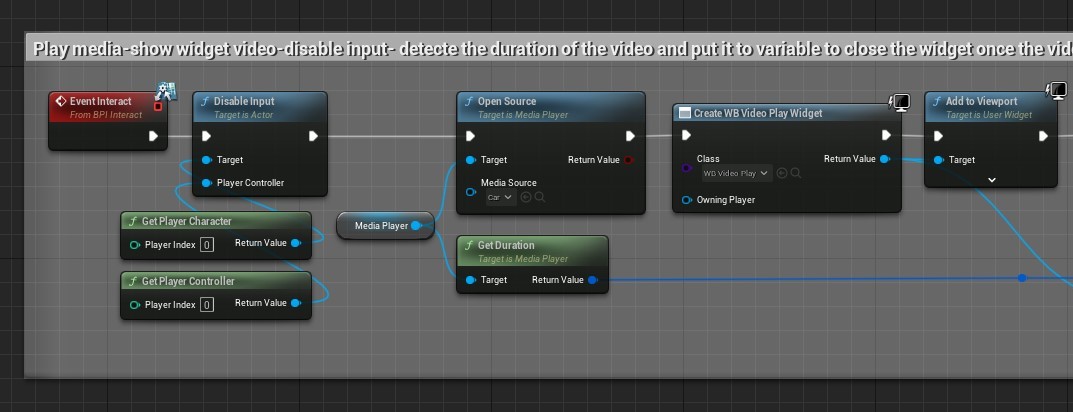
  3. Drag off from the key and add a Disable Input node.
  4. Connect this to Get player character and a Get Player Controller – so the player can’t move when the video plays.
  5. Then add an ‘Open Source’ and select the required video.
  6. Drag off from the Open Source exec pin and add a Create Widget > Select the widget you created for this in the drop-down list.
  7. Next add a ‘Add to Viewport.’

MEDIA PLAYER:

  1. Create a variable and name it media player.
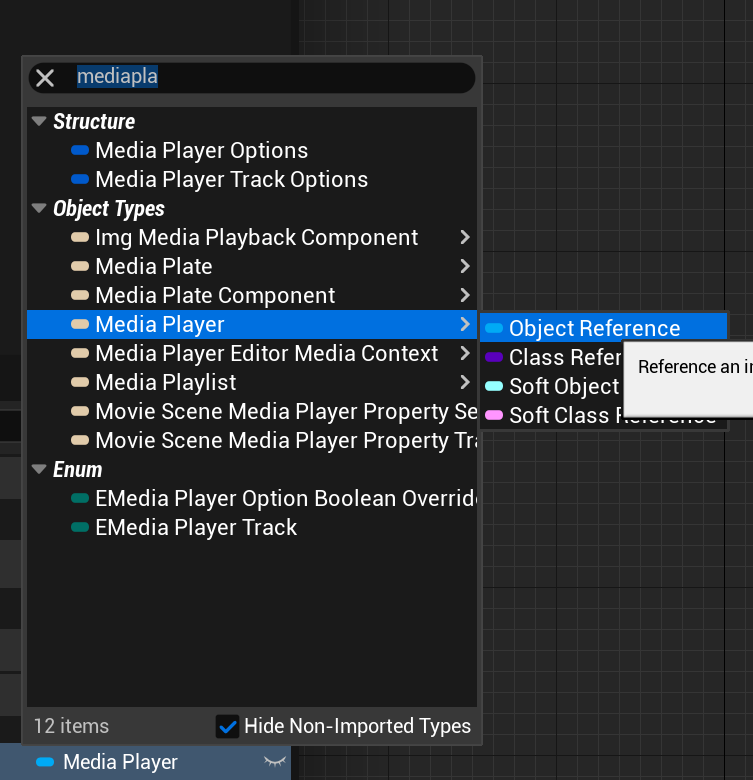
  2. In its type > search for ‘Media Player’ and it should be the object reference type.
  3. Drag in the node and connect to ‘Target’ of Open Source.
  4. Press compile and make sure that the required media player is selected in the media player node details panel (this will appear when  node selected).
  5. Drag off from Media player and add a ‘Get Duration.’

FINISHING OFF:

  1. Add a Delay at about 0.2 – NOTE: The blueprint will not work if this isn’t added as no video will be playing when it goes to Set Duration.
  2. Add another Variable and search for ‘Timespan’ and call it ‘MediaDuration’ 
  3. Drag this new node into the graph and select Set Media Duration
  4. Hover over the Media Duration right-side socket and right click > Select Split Struck Pin
  5. Then Drag off from ‘Seconds’ and connect with another Delay (as shown below).
  6. The rest of the blueprint removes the widget when it’s finished playing and enables the input again.

Please see the finished graph below in full

  1. AS NOTED ABOVE: I’ve used an interface (that I named Interact (The red node below)) to connect the E key directly from the 3rd person character. Hence, I haven’t added an E or P key directly. To add a key directly in the blueprint please see the instructions here.

For further tutorials on blueprints please see the page here: Blueprint Tutorials or to get started with blueprints please see here: Get Started with Blueprint

Related Video Blueprint Tutorials

This overview tutorial is part of a specific set of tutorials that relate to the upload and playing of video in Unreal Engine. Please see below the related posts in this series.

  1. How to upload and play video.

  2. How to Play video in a widget.

  3. How to Automatically Remove Video when it finishes playing.

  4. How to disable every key except one.

The post Unreal Engine Blueprint – How to Automatically Remove Video when it finishes playing appeared first on Motion Forge Pictures.
Report

How to upload and play video in Unreal Engine 5

General / 30 September 2023

How to Upload and Play Video in Unreal Engine 5

In this post it is detailed the simplest way to upload video to Unreal Engine and then play the video in a level.

VIDEO IMPORT AND MEDIA PLAYER:

  1. In the Content Folder create a new folder called Movies
    1. If the video is not in this folder, it won’t get packaged in the game.
  2. Drag in a supported video file into the Movie folder.
  3. This should be in a compressed video format such as an mp4.
    1. See the link here for supported video formats: Supported Video File Formats
  4. Also move the video file into the Windows/PC project Movie folder using the PC folder browser (I.E: Move the video again into the PC folder).
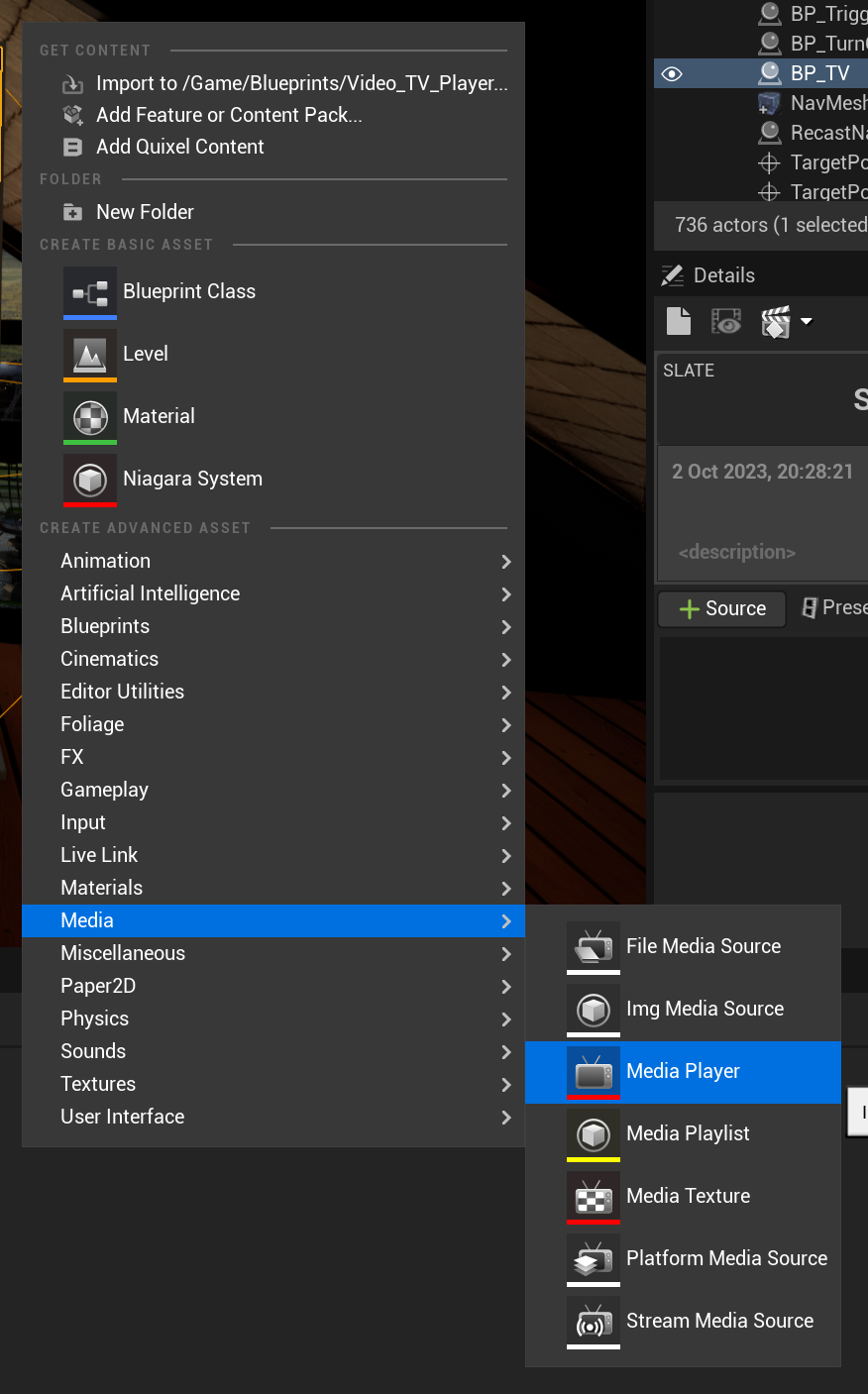
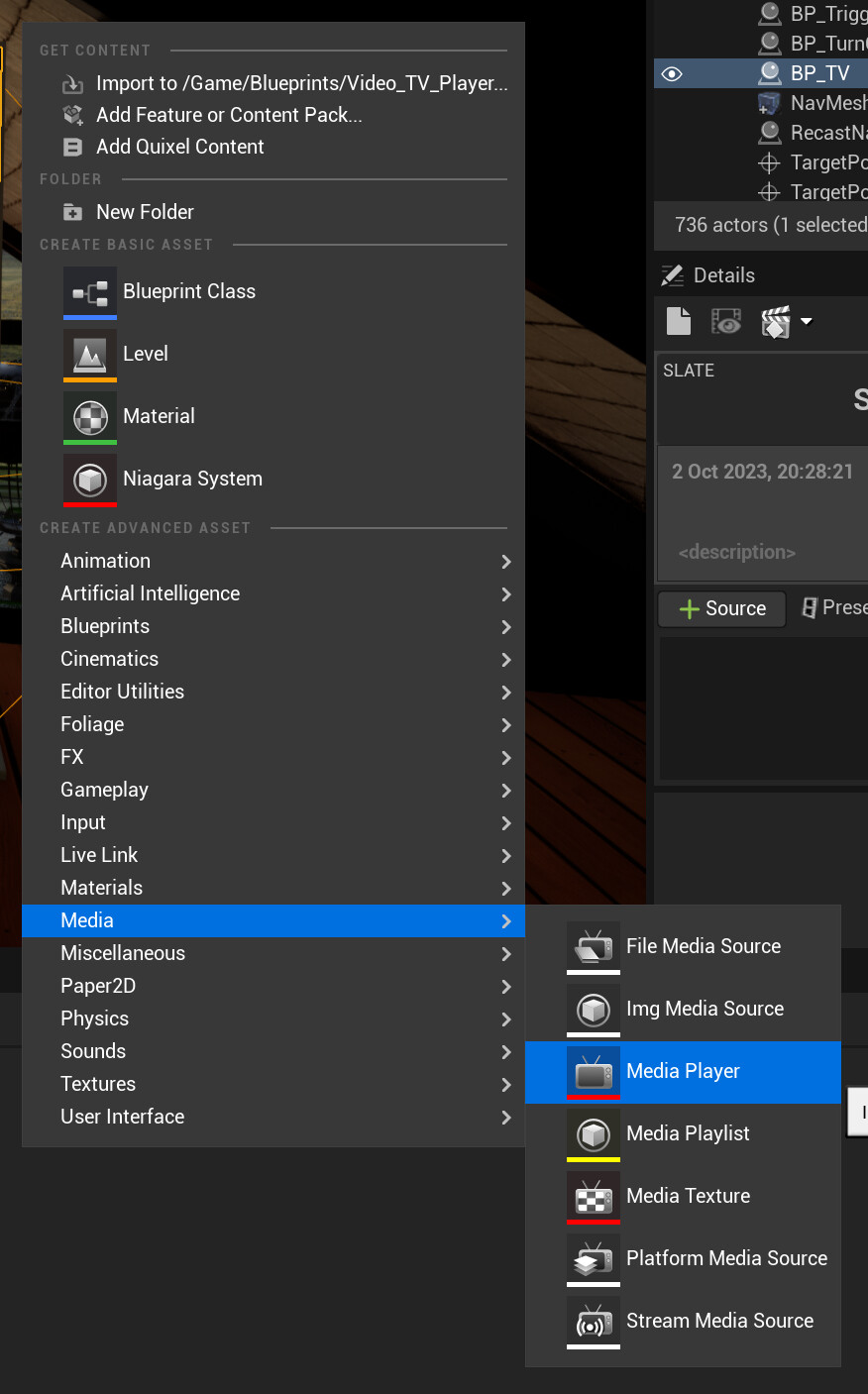
  5. Right click in the new folder and in the menu find (Media > Media Player) and create a Media Player.

  1. A panel will pop up and be sure to tick the box to create a media texture asset.

  1.  Back in the folder > Right click on this newly created media texture and from the pop-up menu create a material.
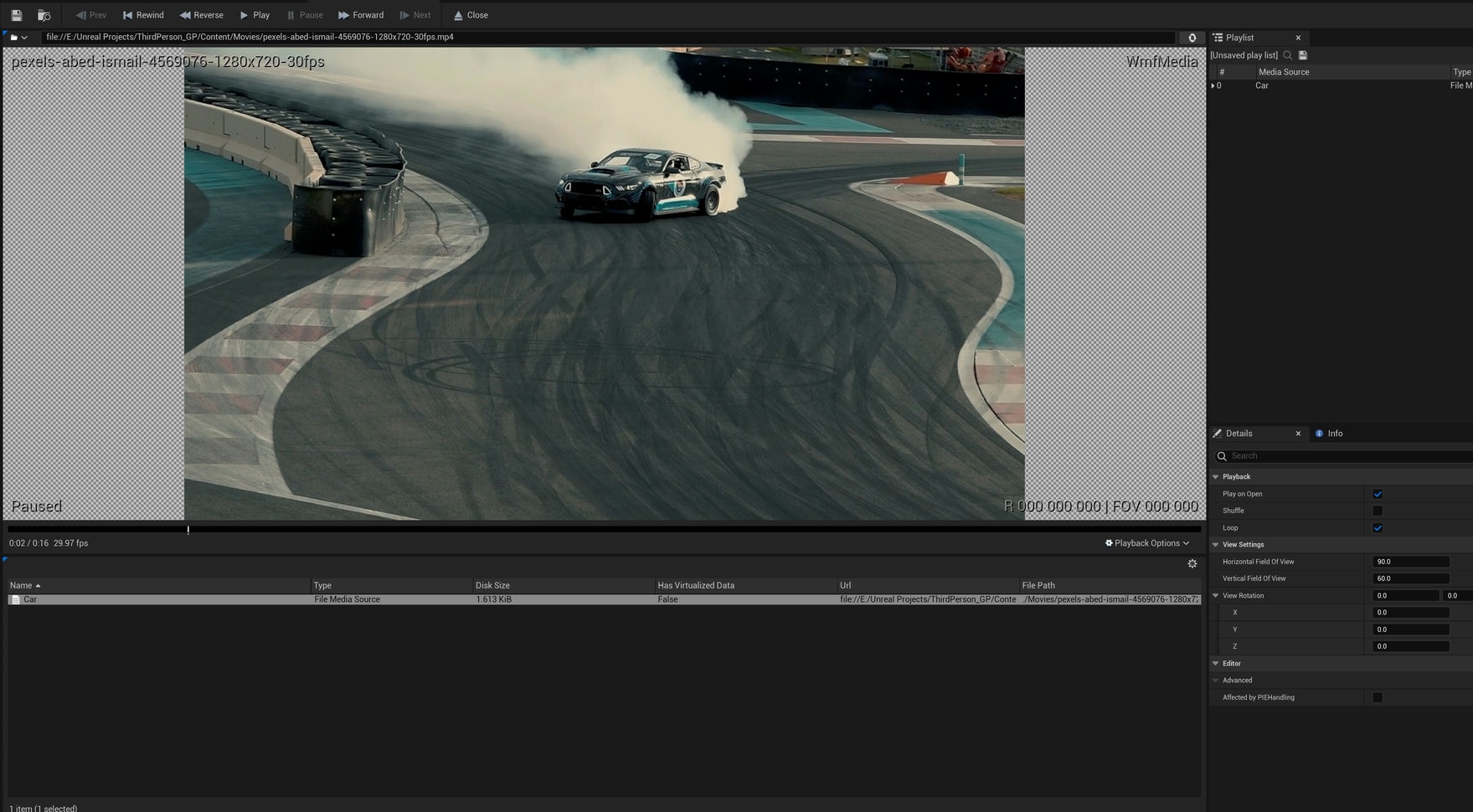
  2. Open the Media player. Double click the video file to make sure it plays. Tick the loop box if you want it to loop.

  1. Close the media player. I have had issues with the video not playing in the editor window if I keep the media player open with the video playing.

BLUEPRINT:

  1. Right click in the Movie folder > Create a Blueprint > Select Blueprint Actor > Name it BP_TV or something similar.
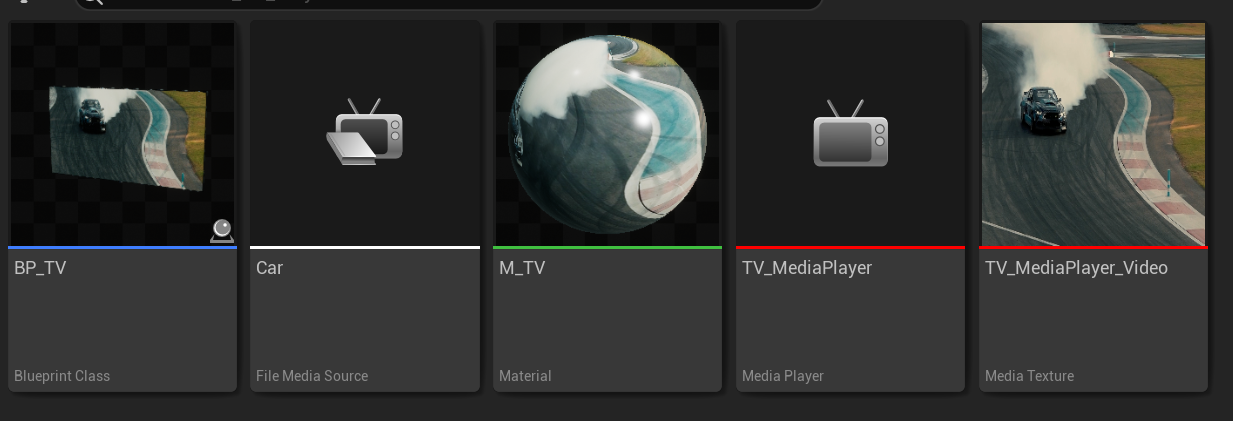
  2. The files now in your folder should show as below: Blueprint, Video, Material, Texture and Media player.

  1. In the Blueprint > Add a ‘static mesh’ and add a plane or TV mesh (a TV mesh will need a separate material slot for the screen for the video material) or just use a plane.
  2. Add the media player material to the mesh screen or plane.
  3. In the graph add the Event begin play node.

  4. Drag off from Event begin play and add an Open Source node. In this node select the video file in the drop-down list provided.
  5. Create a new variable and change it from the default Boolean to a Media player object reference.
  6. Drag this node into the graph and from the options provided select Get NewVar (or whatever you renamed it to – ideally rename to ‘Media Player’).

  7. Plug this into the target of the Open Source node.
  8. Press compile and with the Media player node selected > in the details panel > add the media player that was created.
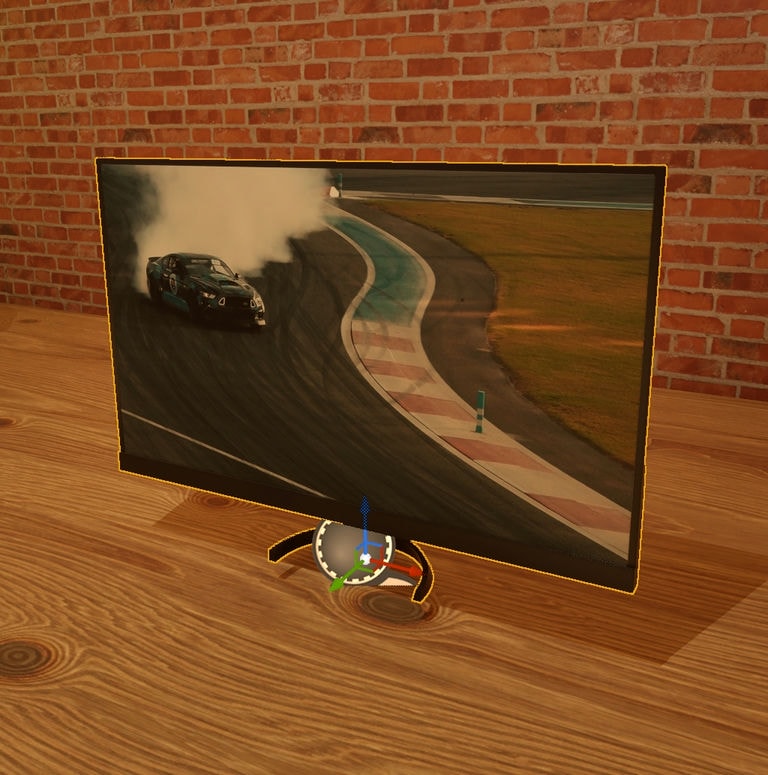
  9. Drag the blueprint into the level and it should work!

ADD SOUND TO THE VIDEO:

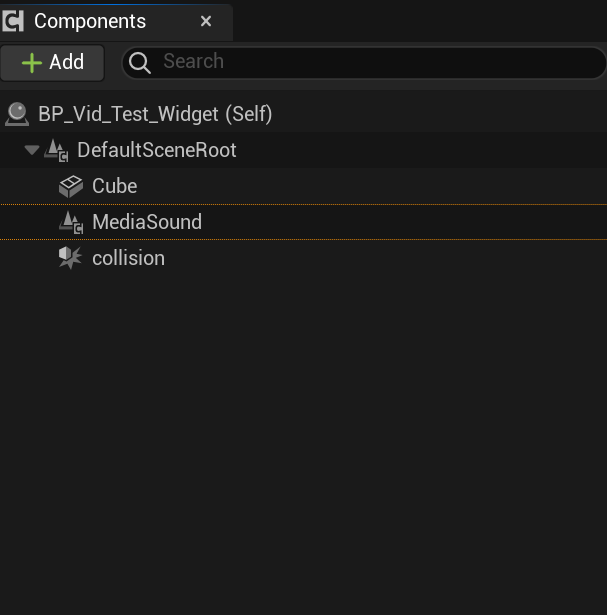
  1. Simple add a Media sound component to the component panel for the video to play sound.
  2. The component panel should like below (assuming you haven’t added other components – which if required is fine of course)

THE FINAL GRAPH:

Related Video Blueprint Tutorials

This overview tutorial is part of a specific set of tutorials that relate to the upload and playing of video in Unreal Engine. Please see below the related videos in this series.

  1. How to upload and play video.

  2. How to Play video in a widget.

  3. How to Automatically Remove Video when it finishes playing.

  4. How to disable every key except one

The post How to upload and play video in Unreal Engine 5 appeared first on Motion Forge Pictures.

Report

Landscape Heightmap 16k Free Download

General / 19 September 2023


Landscape Heightmap 16k – Free Download

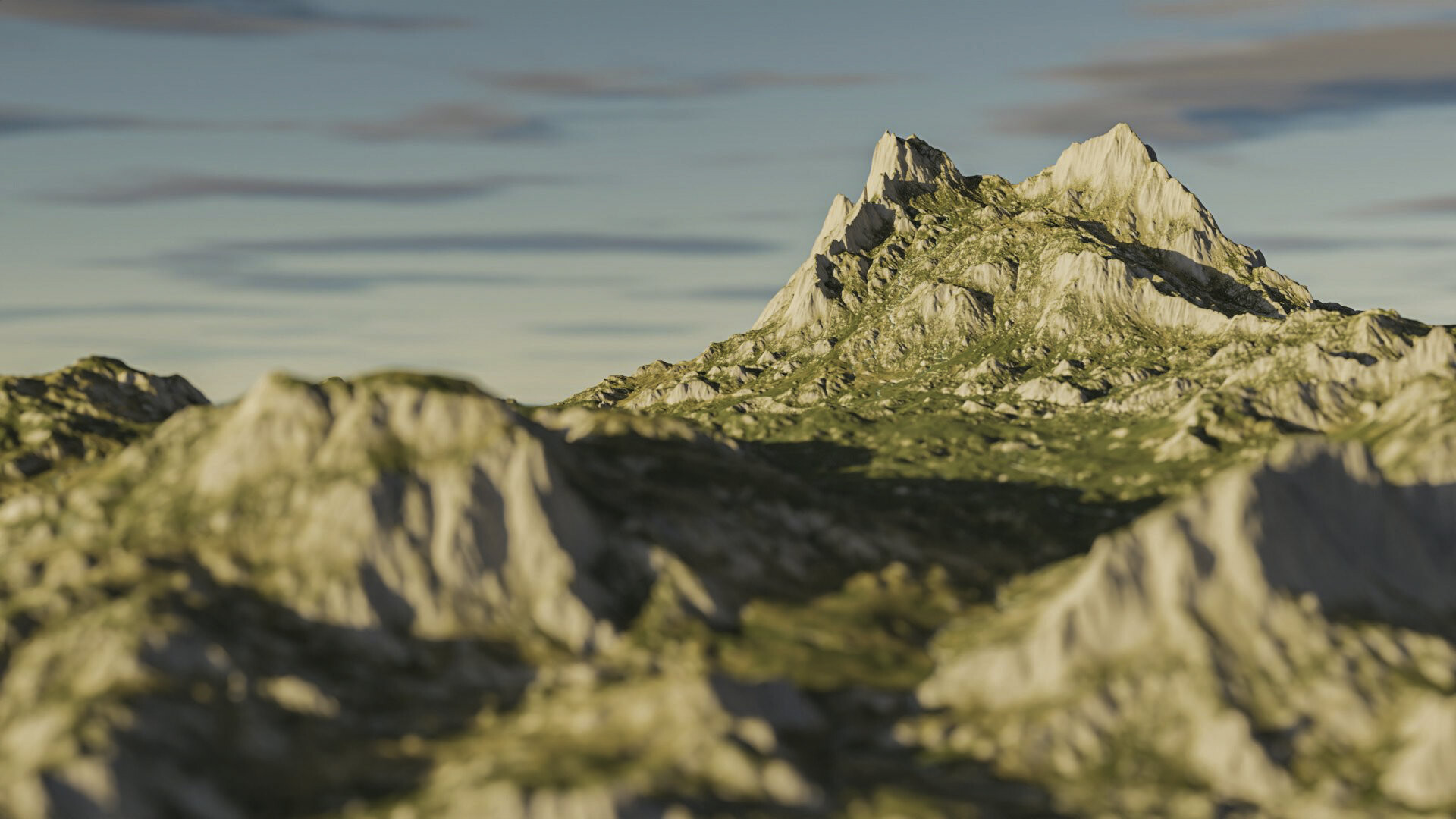
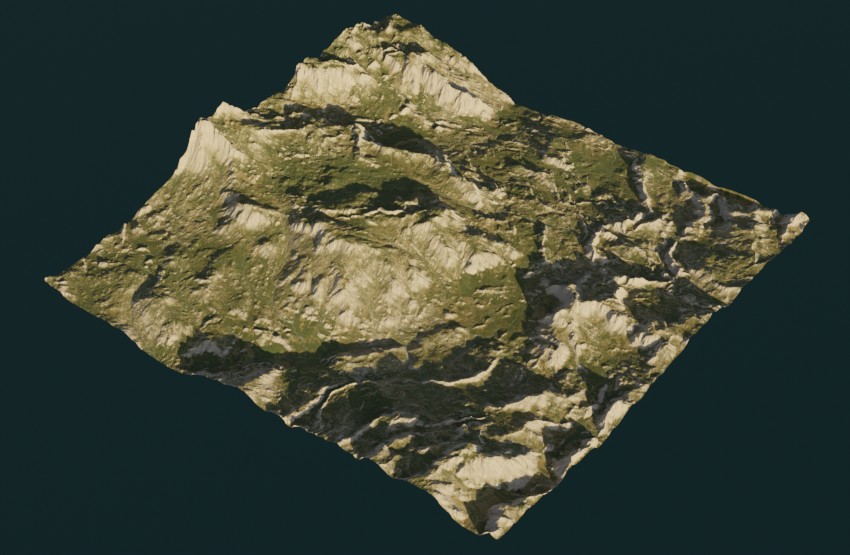
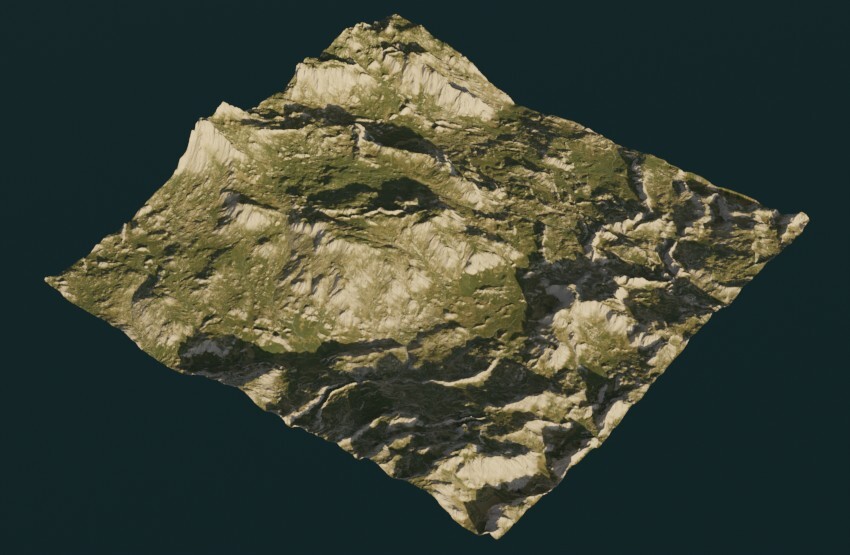
Please click the button below for a free download of a 16k, rocky terrain, landscape heightmap in EXR file format. I have not been able to find barely any landscape heightmaps free to download of this resolution, so I have created this one from scratch and I am happy to offer for free download under a creative commons CC BY4 license.

Please note this heightmap is huge and the file itself is 1GB and the Diffuse is 3GB. If you do use this heightmap – I would recommend a graphics card that has at least 10GB ram and to use a fast M.2 SSD. You may also encounter performance issues due to the demand this file will have on PC resources.

This heightmap will not work in Unreal Engine unless its resolution is reduced as UE only accepts texture resolutions up to 8k. This file will work in programs such as Blender or Maya.

File Format: EXR

Resolution: 16384 x 16384

Files: Heightmap and Diffuse

This work is licensed under a Creative Commons Attribution 4.0 International License. Attribution required and Commercial usage allowed. Please attribute Chris J Mitchell – Motion Forge Pictures – or just – Chris J Mitchell.

For a selection of other free heightmaps please see the download page here. For updates on new heightmaps added to the website, news and updates, tutorials and free or paid for resources please sign up to the newsletter

The post Landscape Heightmap 16k Free Download appeared first on Motion Forge Pictures.

Report

Drone Hunter – FPS Game

Making Of / 13 September 2023

Drone Hunter – FPS Game

Drone Hunter was the first FPS game I made and was completed over 1 year ago. I’m happy to share this for free and it can be downloaded from itch.io using this link – Drone Hunter itch.io

It was the first video game I’ve made and was a learning project that covered the key elements for creating an FPS in Unreal Engine. There is only around 10 mins game play in total, so not a long lived game, but a blast for a few mins. The objective of this game is to simply destroy all the drones before the time runs out.

The course I followed to create this game was with gamedev.tv and whilst many aspects of game creation I already know such as creating the environment maps and setting up the lighting and so forth, it was well worth the time and money spent. Some of the new aspects of Unreal engine I learnt were around blueprints and specifically in relation to an FPS shooter game.


Key Summary:

Below are some key high level points I learnt about blueprints and also creating an FPS. These will be of use to anyone who is just starting out making their first game in Unreal Engine.

One key overall point is that blueprints are incredibly powerful and flexible. They can be used to create all types of functionality not just within a game, but also within an animation, VR experience and so forth. Doing this course have opened my mind further to the possibilities that blueprints offer and how they can add even greater depth to animations.

Getting Started:

  • As this game was a learning project I jumped straight in the building the game.
    • But usually with any game you should start with an idea for the game and then work on the story and game mechanics.
    • There is also storyline, level design, environments, models, look and style of the game, sound effects, voice overs, animations and so forth.
  • It goes without saying that to make a good video game is a lot of work, and for this game I didn’t create any of the models and these were asset packs from the Unreal Marketplace.
  • I like things to be over the top (sometimes) so the muzzle flash and explosions are pretty large, unrealistic, but hopefully add some fun.

Blueprints:

  • Bear in mind that Blueprints run on a virtual engine, so this consumes more resources than just using or using in part C++.
    • You also don't have all the functionality that C++ can offer, but Blueprints easily cover enough for in-depth game creation.
    • If you are thinking of making an intensive multi-player first-person shooter game with many characters and events then C++ would likely be required.
    • If making your first (or tenth) indy game by yourself then using blueprints is a realistic way to go about it.
  • Blueprints are not that easy to pick up for a new starter – so don’t worry if you can stuck for a bit or have trouble remembering all the nodes and commands.
    • The more you use blueprints the more familiar they will be become.

Testing:

  • Test regularly and as you make the game.
  • Do not wait until the end to test.
  • Package and export the game out and don’t just test within the Unreal engine viewport.
    • I packaged up the game at the end – but when playing the drones were static and didn’t move.
    • But they did move and work correctly in the Unreal Engine viewport!
    • I fixed this issue, but export and play/test as you go along to make sure you are picking up any bugs.
  • Test for performance.
  • Test for bugs in the game mechanics/graphics.
  • Test for game flow and how much fun it is.
  • Iterate and improve the game as you go along.

Performance:

  • It goes without saying that you must pay attention to your game performance and FPS.
  • Also the platform or platforms that the game will run on will determine the quality of the graphics.
  • Lighting, meshes, shadows, draw calls, overlap events etc… all have a toll on the performance of the game.
  • Turning on the FPS so you can see frame count is an easy way to keep an eye on performance as you go about making the game.
  • Always be wary of performance as you proceed.

Packaging and Exporting:

  • Packaging up and exporting is extremely easy and just selecting the command in the menu.
  • One key point to consider is making sure all levels are included, but these can be added to the export options.
    • By only selecting the levels required you also are not including any unnecessary game files.

I’ve been using Unreal Engine for almost three years and in that period have focused solely on creating environments and animations/cinematics. So I am very familiar with this excellent software, but as I have gotten to know the tool so well I figured I really should know how to make a video game or at least the key foundations of how to go about doing this – so I’m happy I finally got around to doing it and it has opened my eyes to the possibilities that blueprints offer.

Report

Arch Viz – General Purpose Interactive Demo – V2.0 - Free Download

News / 13 September 2023

This is the 2nd and improved version of an arch viz – general purpose interactive demo I made in Unreal Engine 5. It was created to showcase some of the functionality that is available not just for arch viz interactive environments, but also could be used for other industries or those needing interactive demonstrations of an environment, such as an art gallery or museum.

Upcoming Improvements:

  • This is version 2.0 and I do plan to make improvements, add new functionality and general polish in the future. Upcoming updates will include:
  • Refine and improve the foliage and surrounding environment.
  • Improve and add better audio and audio effects.
  • Change 3rd person character.
  • Further improvements and additions.

Further Info:

I have added mountains and a much improved landscape material for the 2nd iteration of this project, but it is quite somewhat bare! So in the future I may add detail to surrounding area. Most arch viz is pretty much in 1st person view, but I have added a function for 3rd and 1st person. Whilst having 1st person can get you close engagement with the environment and moves the 3rd person out of the way. 

I also like the fact that 3rd person can give you a sense of scale of a person in the scene. I created this so it has an exterior as well as an interior. I added a vehicle and an NPC character, although many more vehicles or characters could be added if required. The vehicle is animated with a blueprint, which is super handy as it speeds up the wheels or slows them down depending on the speed it moves at and no wheel animation assets are required.

Video Preview:


Download the free Demo: 

Presently only available for Windows.

Download Links:

  • I created the Modern Building (used in the demo) in Blender and made it available for free download – for more info please: Click here.
  • I also created the keyboard overlay (Affinity and PSD template) and this can be downloaded for free: Click here.
Report

Unreal Engine Blueprint – Can I break or cancel a delay node?

General / 10 September 2023

Can I break or cancel a delay node?

Technically you can’t cancel or break a delay node unless you’re using C++. But there is a way to re-route the delay node, so it triggers different actions. This requires the use of switches, bools and other nodes that in all intent and purposes will break the delay node.

Below is an example of a Blueprint I created that didn’t work as required, for the delay node needed to be canceled in certain scenarios, but after some additional logic I got it working as required.

Auto Light – On or Off: Initial Blueprint.

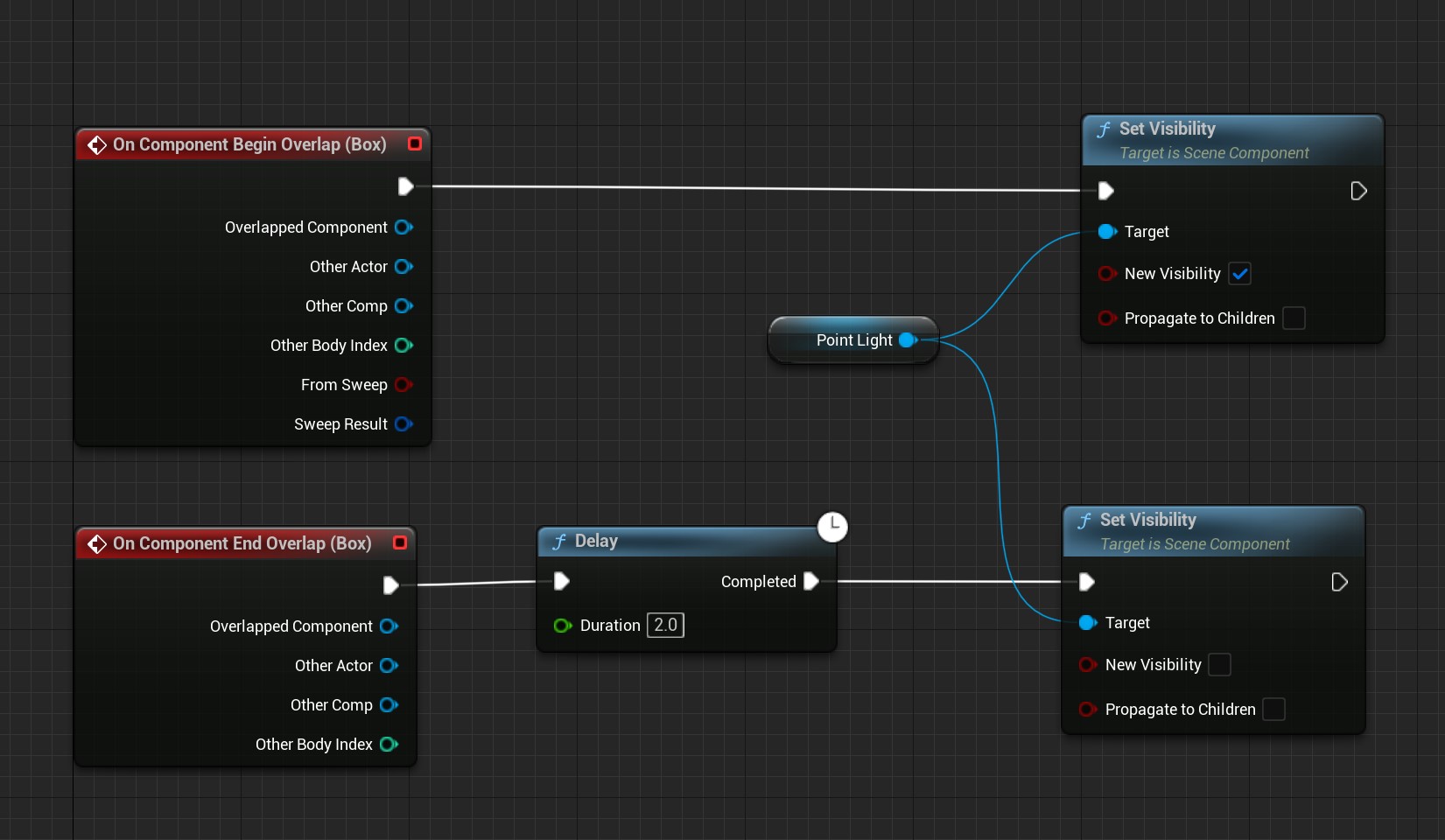
I’d created a simple ‘auto – on or off’ blueprint where if the player entered the (begin overlap) collision box it turned on a light. The light would then be triggered to turn off when leaving the (end overlap) collision box. To make this a little more realistic I added a delay node to stop the light turning off immediately. See code below:

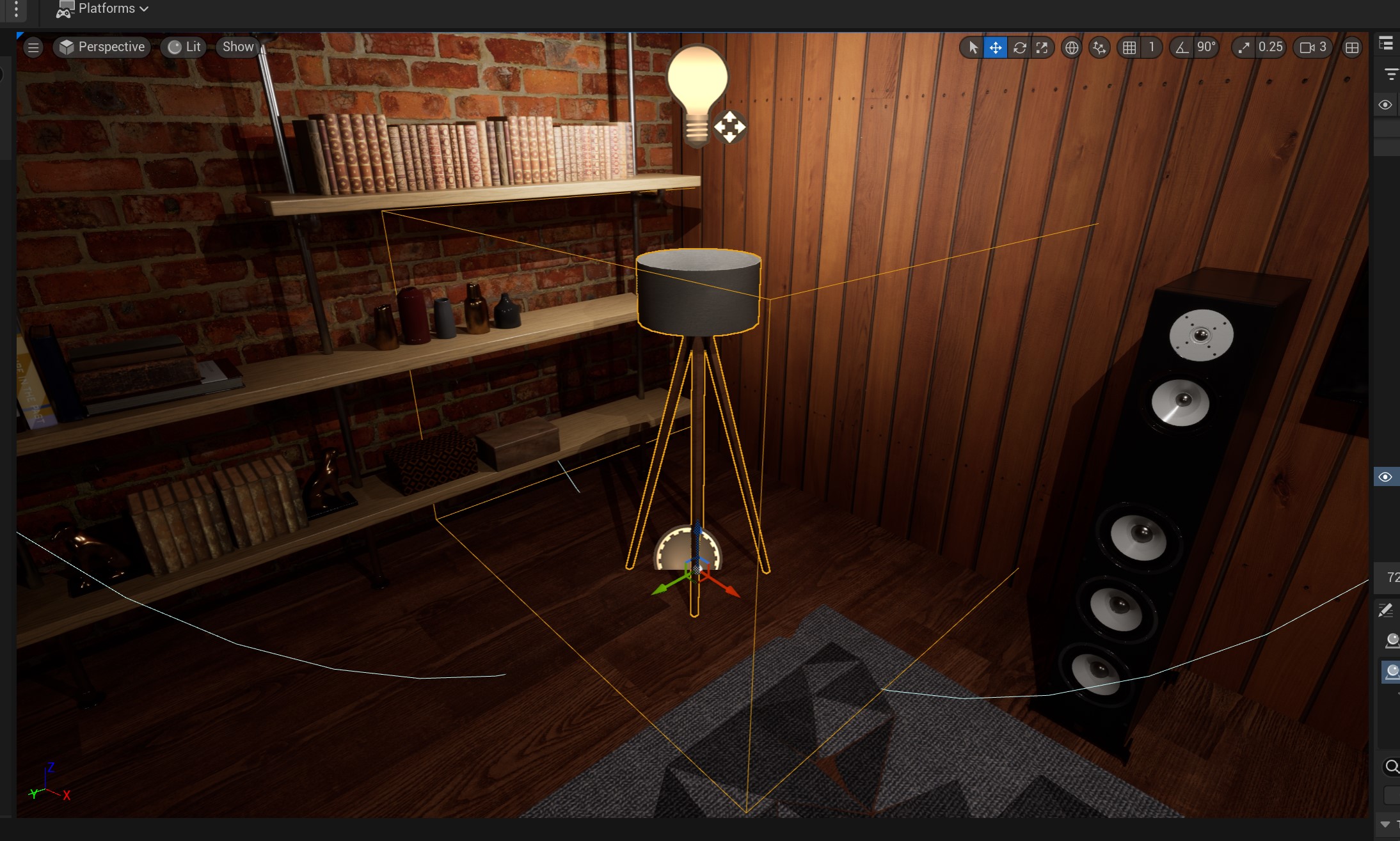
The components added for this are just a point light, collision box and a static mesh for the lamp shade.

The problem I encountered was if I quickly re-entered the collision box before the delay was executed, the light would turn off with the player character still in the collision box. Hence leaving the logic functioning incorrectly.

The simple solution would be to just cancel the delay, but there is no way to do that in Blueprints.


Auto Light On or Off: Updated Blueprint with more advanced Logic:

So, I created a switch and branch to circumnavigate the delay if the player re-entered when the delay was still counting down and if the light was still on.

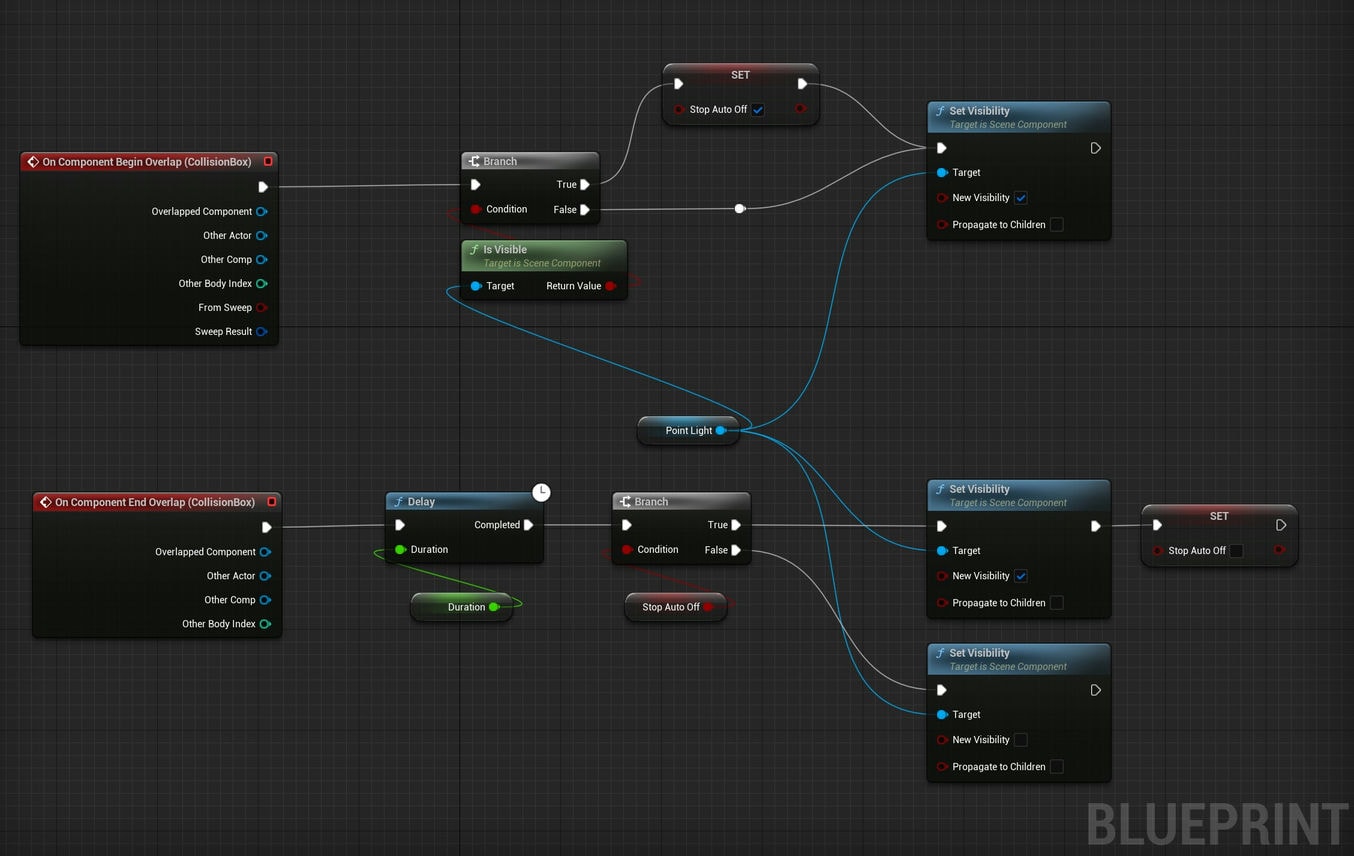
To do this I added a switch (Boolean variable) where if the player re-entered the collision box whilst the delay node was still running, this would flick a switch to re-route the delay node to keep the light on, as opposed to turn the light off. See the final version and a detailed outline of the code below:

Logic: The > arrow represents the flow of the nodes in the graph above.

  1. Player enters the (Begin Overlap) collision box > Triggers the Branch.
    1. Branch Condition: I added the Is Visiblenode > The target of this is the point light and this checks if it’s Visible.
      1. I created a Boolean Variable and called it: Stop Auto Off
    2. So, if Light is Visible > Then the Branch = True > Set Boolean Switch (Stop Auto Off) to True (as its set to False initially)
    3. If not visible > Then Branch = False > Set Visibility to Visible (tick the box). 
  2. Player leaves (End Overlap) collision box > Triggers the Delay.
    1. This Triggers another Branch.
    2. Boolean Condition = True or False
    3. If True > Set Visibility to On and Set Stop Auto Off to false (by default leave the box unticked in the Boolean node).
    4. If False > Set Visibility to Off.

In summary:

When the player enters the collision box it checks if the light is on (visible) if it is on then flick a Boolean switch and this will simply change the action for when the player leaves the collision box. Hence, either trigger the delay to turn the light off when the player leaves or if the player remains under the light then keep the light on!

Key Notes:

This is one way to re-route a delay node and you may have to tweak or amend the logic for your purposes, but this should give you a way forward. If you have any comments or suggestions please do say.

Report

Unreal Engine Blueprint – Cycle Through an Array

General / 15 August 2023

Unreal Engine Blueprint – Cycle Through an Array

This tutorial will show you how to cycle through an array. It will cycle through a selection of different colors to do this, but it can be used with other functions as well and not just changing colors.

Components:

  1. Right click in the required folder and create an actor blueprint.
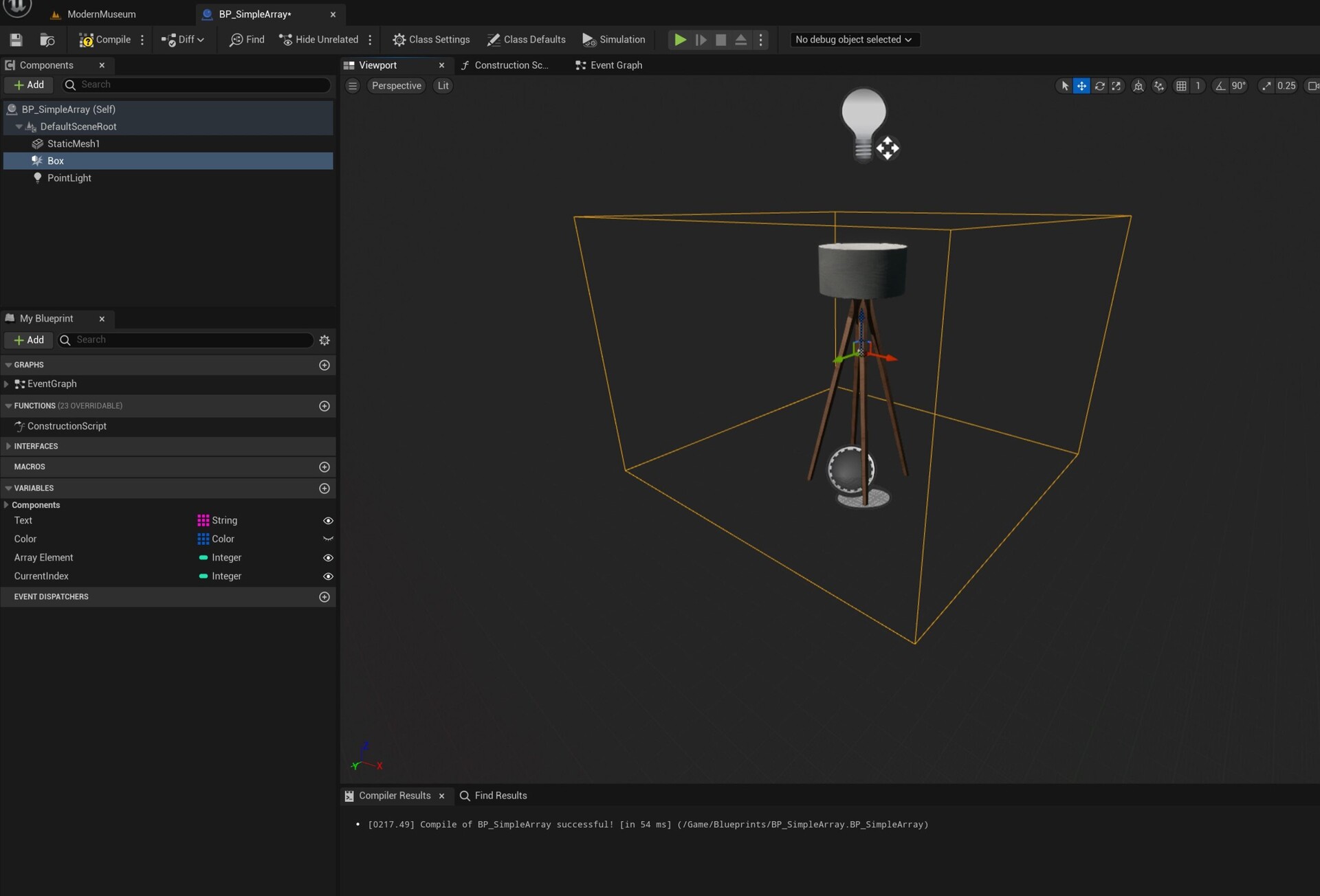
  2. In components panel add:
    1. A Static mesh and in its details panel add the required mesh e.g. Lamp shade or light fitting.
    2. Add a collision box and resize to the required size (make sure the players character can fit into the box).
    3. Add a point light and position where required.

Event Graph:

  1. To replace the Event Interact Interface (red node) in the image below see NOTES at bottom of page.
  2. Add a Branch.
  3. Drag of execution pin and search for Set Light Color
    1. This will be added with the point light (if not then drag point light from components and attached to set light color).
  4. In variables panel:
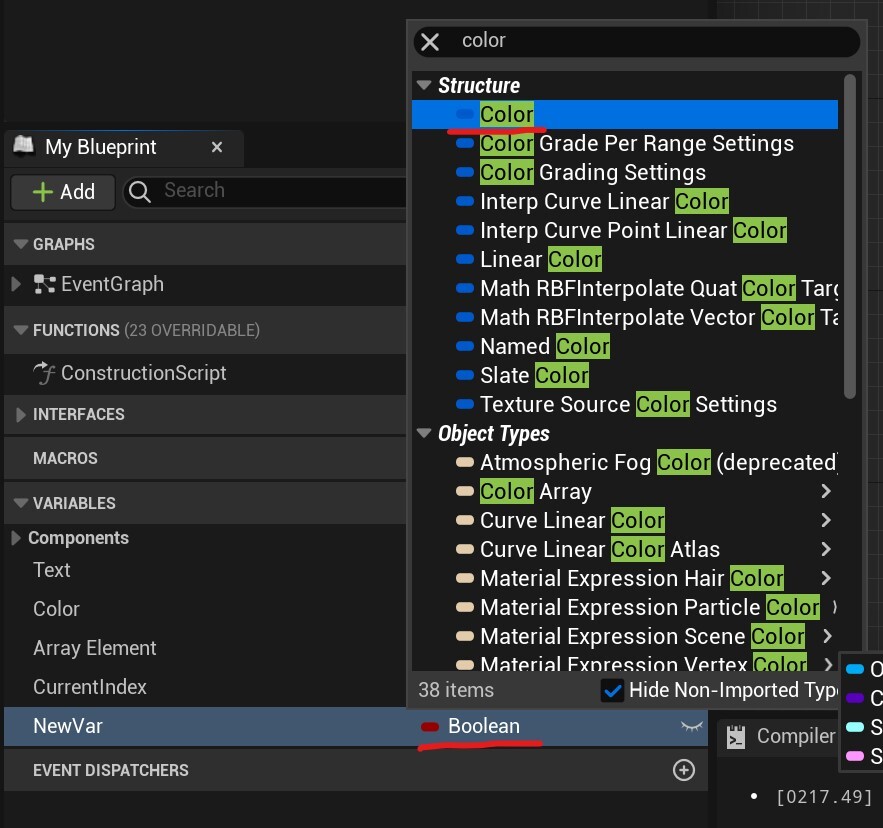
    1. Add a new variable – then change type from Boolean to Color Actor
    2. Right click on Color Actor to make it an array.
      1. In its detail panel (on the right hand side)
      2. Add 3 Array Elements.
      3. Change the color of each.
      4. You now have man array of 3 colors.
    3. Add an Integer and name it Current Index.
    4. Drag these both into the graph.
  5. Drag off the Color array node and search for Get (a copy).
    1. Plug in the Current index into the lower socket of Get (a copy).
  6. Drag off Get (a copy) and plug into New Light Color of the Set Light Color node.

Finishing off the Graph:

  1. Drag the Current Index node into the graph again.
    1. Select the Set option.
    2. Drag off Current Index socket.
    3. Add a + node.
    4. Add 1 into the bottom box.
    5. Drag of the top left node and search for and add the Current Index node again.
  2. Now you will be able to cycle through the Array index by adding 1 to its element each time you press the interact key (E.g. E key).
    1. This will need to reset to 0 though.
    2. Follow the image below to add the rest of the nodes.
  3. To add the LENGTH node
    1. Drag off from the Color array node (once you’ve added it)
    2. Search for LENGTH.
    3. This simply gets the number of elements in the array (3 in this example).

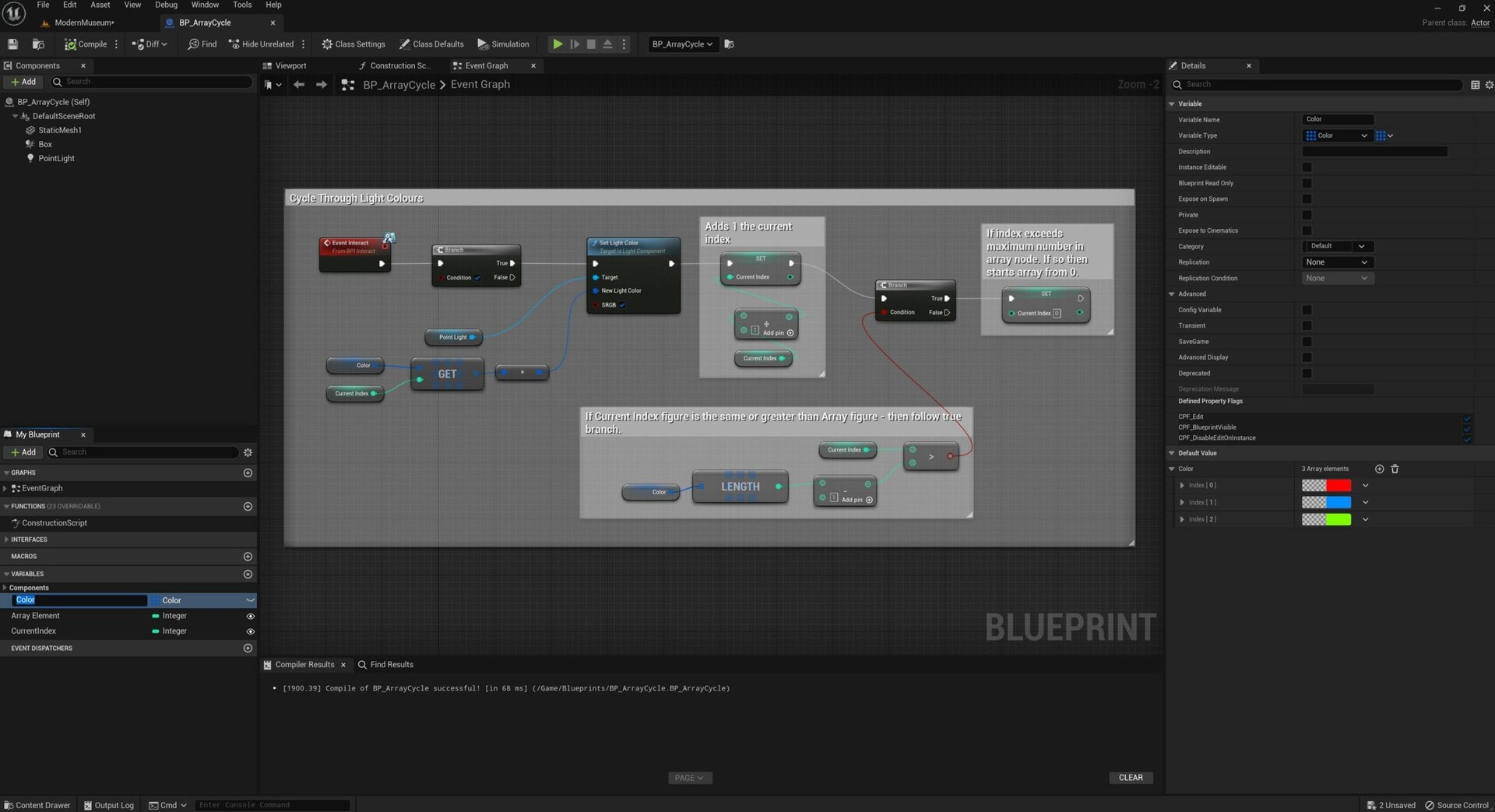
Completed Graph: Including view of variables and the array color elements.

Whilst this may look a little complicated its fairly straight forward:

  • This blueprint creates a color array of 3 colors
  • Sets the light to these colors.
  • Then adds 1 to the current index (of the array node) so the colors are cycled through.
  • Once the Index gets to 2 (Arrays start from 0 so 2 is the 3rd element) it will start again from 0.

Summary:

When your character walks up to this light and the player presses the E key the light will now change color and pressing the E key again will move to the next color in the Array.

For further blueprint tutorials please see the blueprints page by clicking here.

NOTE:

  1. I have used an interface to connect the button E to all the characters interactions.
  2. You don’t have to do this – but it is a highly recommend and more advanced approach.
  3. You can simply add the nodes below to add a key directly into the blueprint.
  4. Once the nodes below are added – then replace the Interface node key with the E key (or a key of your choosing – see more detailed instructions by clicking here).

The post Unreal Engine Blueprint – Cycle Through an Array appeared first on Motion Forge Pictures.

Report

Warn Notice Board (Free Download)

General / 15 August 2023

Warn Notice Board

Notice Board Details:

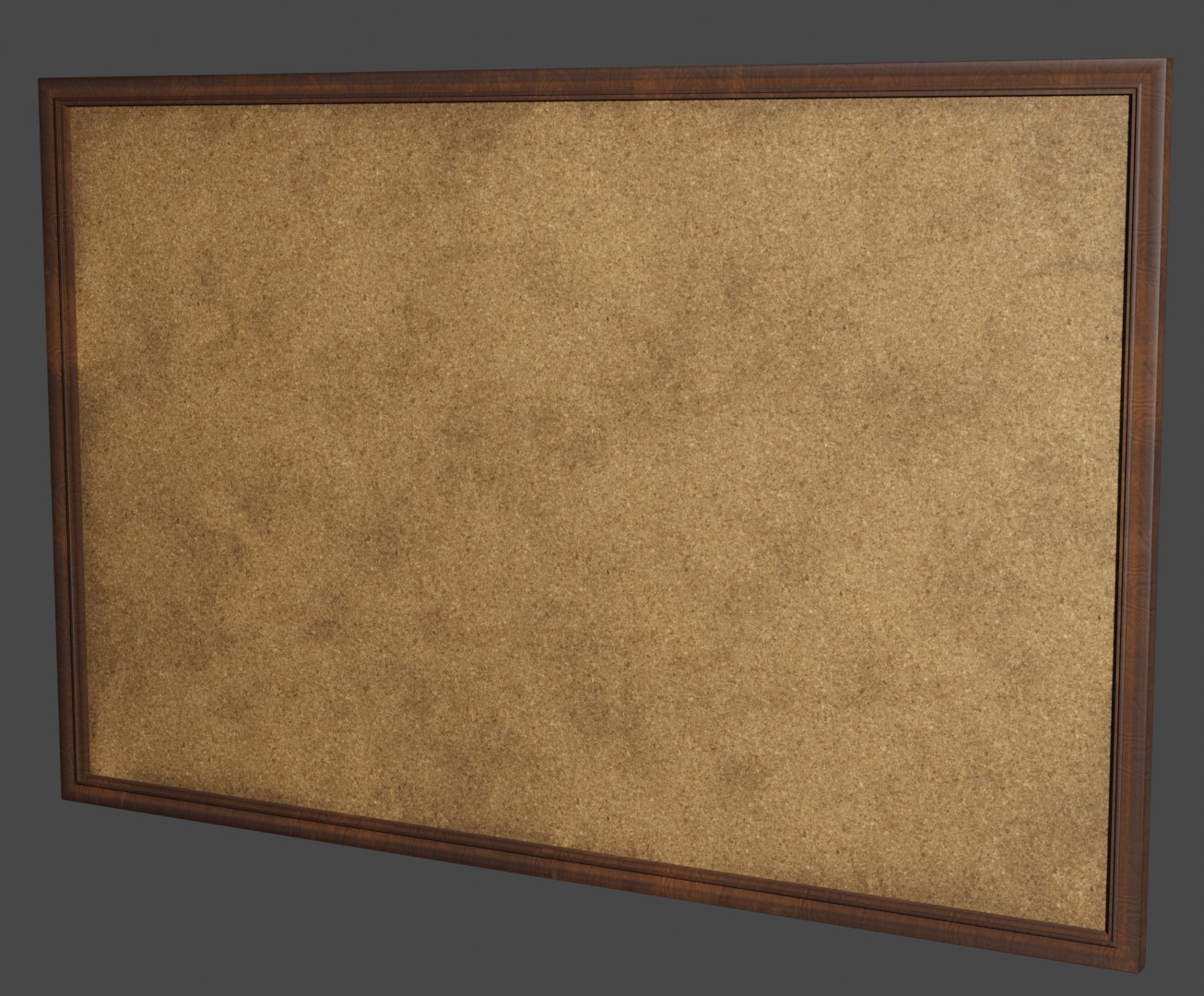
  • A warn detective style notice board has been added to the store and is free to download!
  • Low poly notice board( Vertices 144 and Faces 141).
  • Atlas wrap textures that cover entirety of the board (including wood, cork and damage).
  • FBX file type.
  • 4k – PNG – Good Quality Textures.
    • Diffuse.
    • Normal.
    • Height.
    • Rough.
  • Created in Blender and textured in Substance Painter.

Without or without the Damage Showing

The second feature image shows the notice board without damage and to achieve this look simply remove the normal texture or add the normal texture to get back the damage.

The post Warn Notice Board (Free Download) appeared first on Motion Forge Pictures.

Report

Unreal Engine – How to Create an Array Blueprint

General / 20 July 2023


Unreal Engine – Array Blueprint

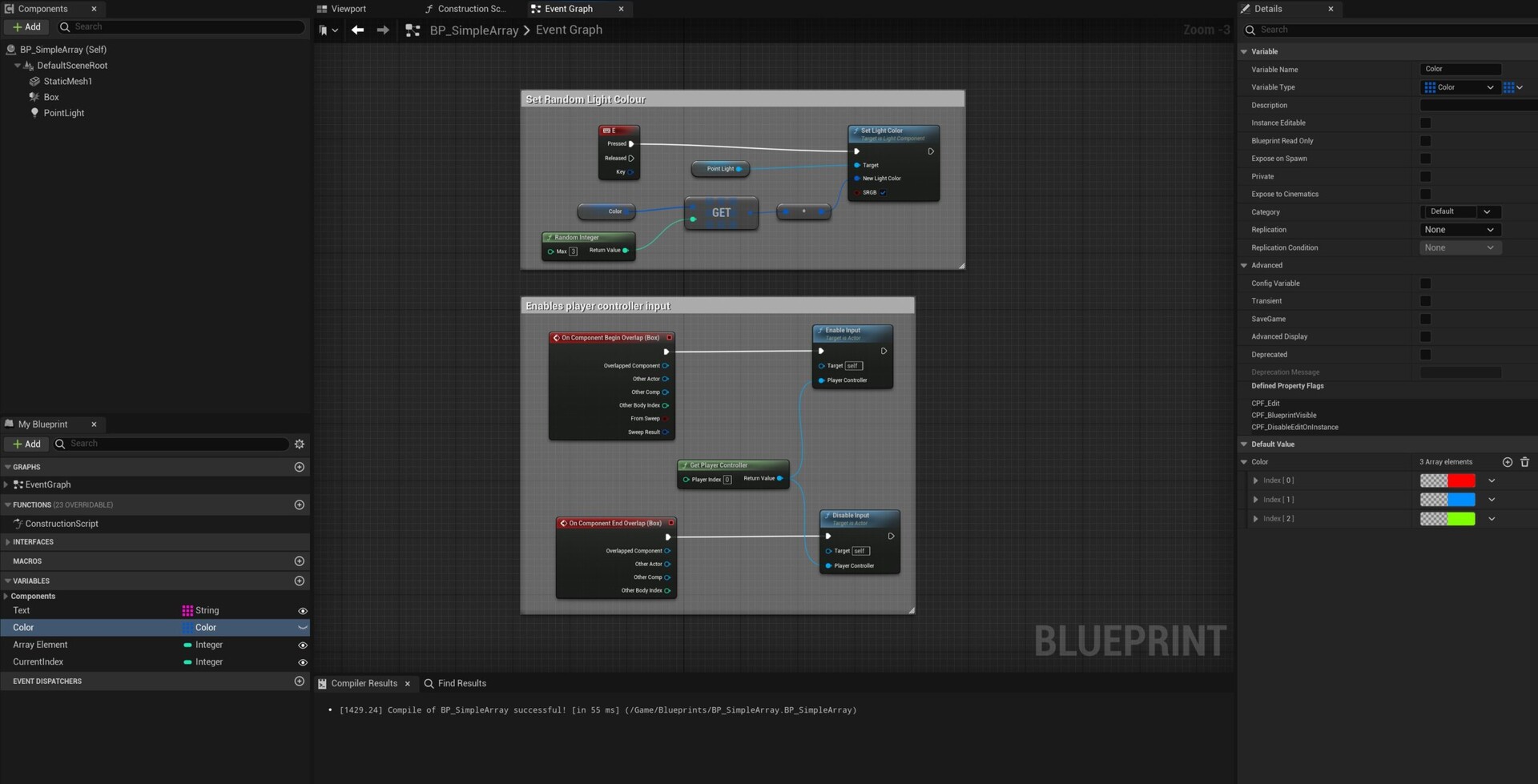
Below is a simple array blueprint that you could use to create a random sequence of colours from a point light.

Simple Array Blueprint

The blueprint actor detailed in this post will allow for your character to cycle through random colors in a point light. This tutorial does require some basic understanding of blueprints to follow.


Create Blueprint Actor:

  1. Right click in a folder – Create a Blueprint and Select the ‘Actor’ Blueprint.
  2. Name accordingly.

Components:

  1. In the components section add:
    1. A point light.
    2. A static mesh (this can be a lamp or light fitting).
    3. Box Collison.
  2. Position these so they fit your requirements. Make sure your character can stand inside the trigger box.
  3. See Example below.

Event Graph:

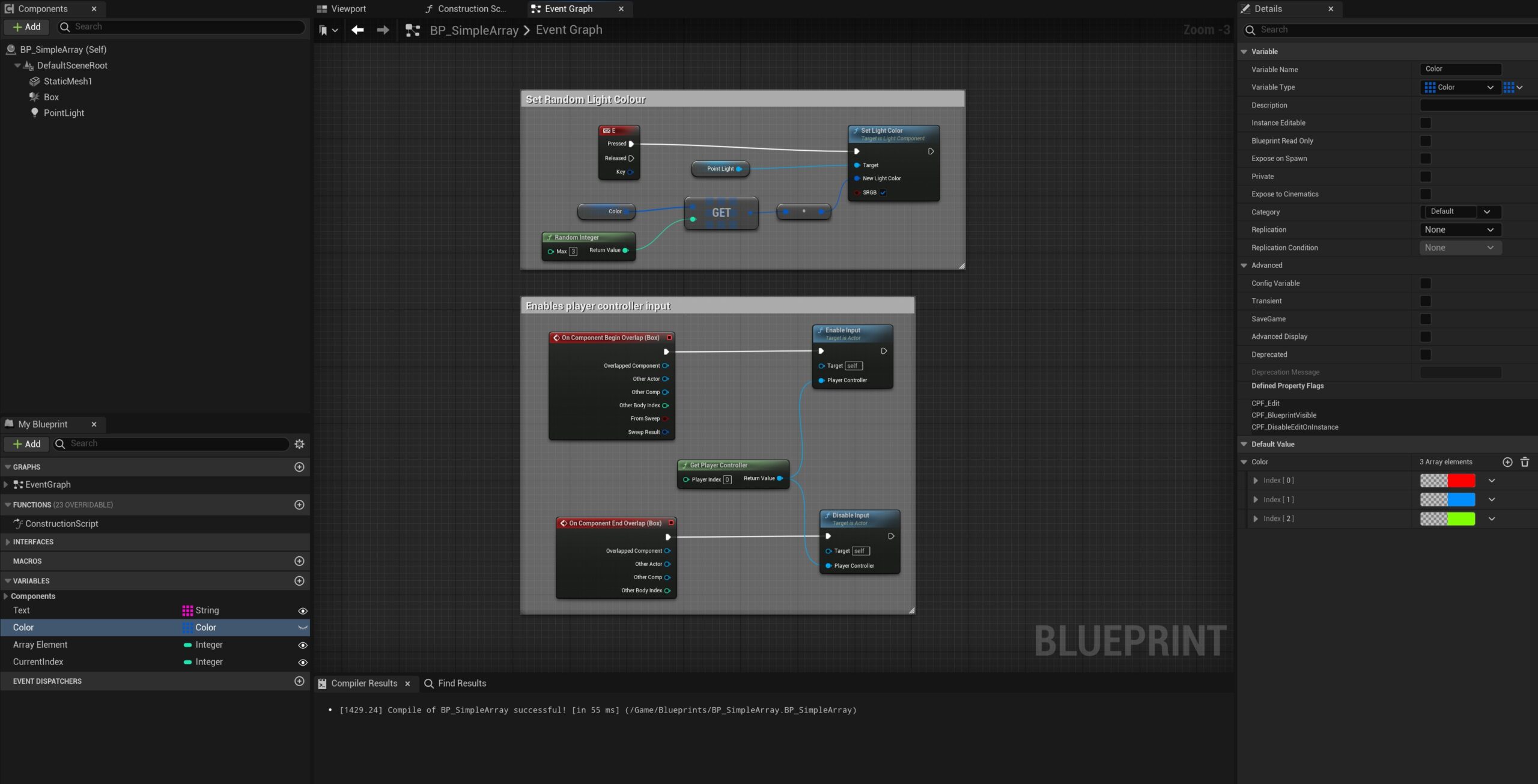
  1. In the Event Graph add the code below (Enable and Disable input and Get Player controller) to activate the player controller.
    1. To add the On Component Begin Overlap node – Right Click on the Box Collision in the components tab- Select: Add Event – On Component Begin Overlap

2. Add a variable – Change it from a Boolean to a Color Actor Variable (to do this click on the default bool variable that has been added and search for color).

3. Right Click once over the Color name to convert it to an Array.

3.1 Select the Color variable and in the right hand side details panel – add 3 array elements (which will only be colors).

3.2 Change these to different colors of your choice.

4. Drag in the Color array variable into the event graph.

5. Drag off from its only socket and search for ‘Get (a copy)’

6. Now right click in the graph and search for Random Integer.

6.1. Add 3 into the field of the Random Integer as we have 3 colors in our array (this could be higher if you use more than 3 colors)

7. Plug this into the ‘Get (a copy)’ node.

8. Drag in the point light from the components section – Drag off and search for ‘Set Light Color’ 

9. Plug in the ‘Get (a copy)’ node into New light Color socket.

10. Search for a keyboard key letter or number (e.g. E).

11. Plug this into the ‘Set Light Color’

12. Done! Now when the player character enters the collision box and presses E – the light color will change randomly to one of the inputted colors.

The Final Graph should look like the below:

If you have any questions please do get in touch or leave a comment. Thanks!

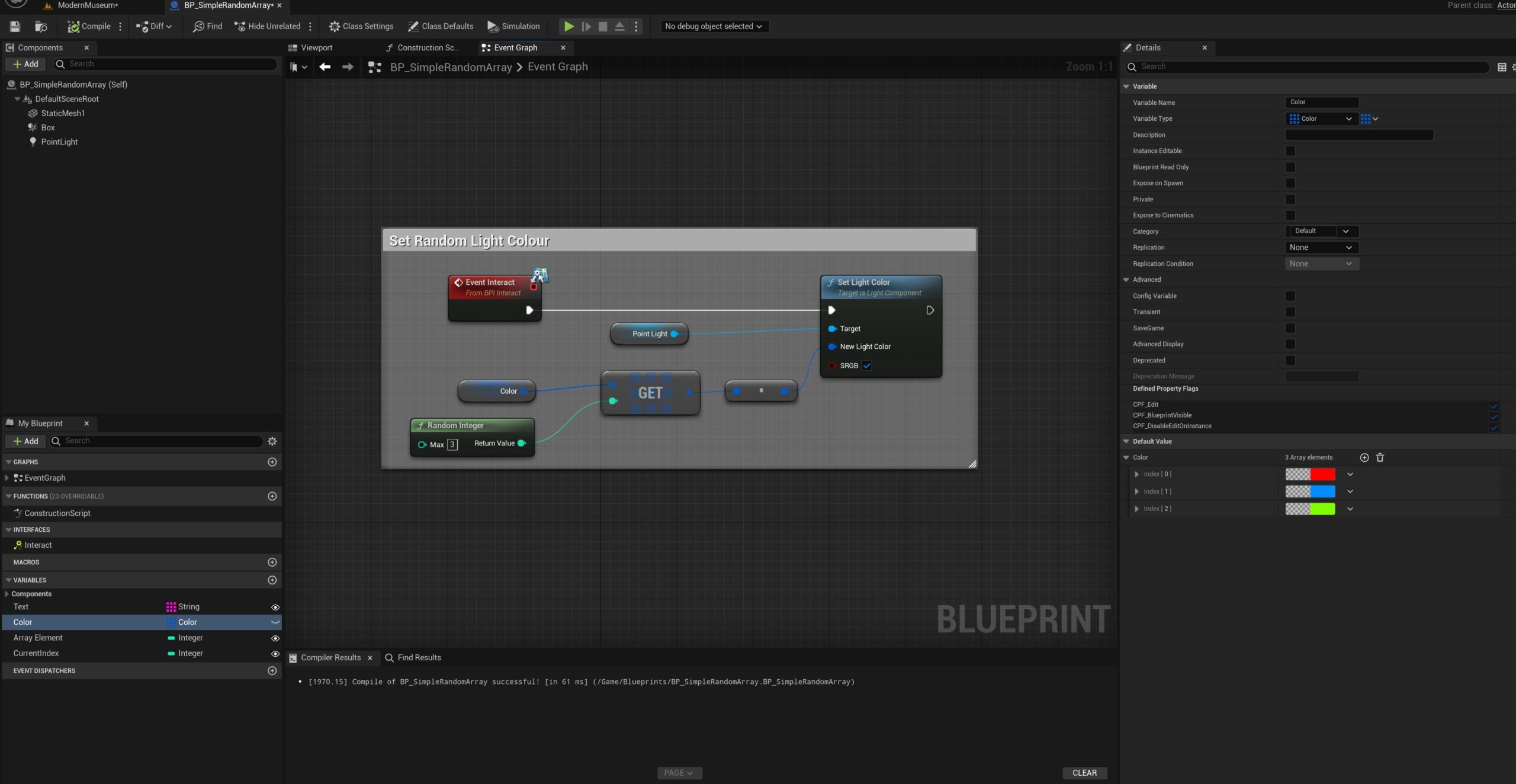
Pro Tip: Use an Interface that connects your character to any interact actions that take place through out the game/simulation. This has many advantages, as you will not need to keep adding the enable and disable input nodes and only need to add one interface node to your blueprint.

You also will be able to update the interface that will in turn update all blueprints using the interact interface.

For example see below the same code but with an interface used instead. I will create 2 or 3 posts on how to create and use an interface at some point in the near future. Please leave a comment if you would like to see these posts sooner.

Also please check the Blueprints page for further tutorials on Blueprints.

The post Unreal Engine – How to Create an Array Blueprint appeared first on Motion Forge Pictures.

Report

Keyboard UI Template – Free Download

General / 12 July 2023


Keyboard UI Controls Template – Free Download

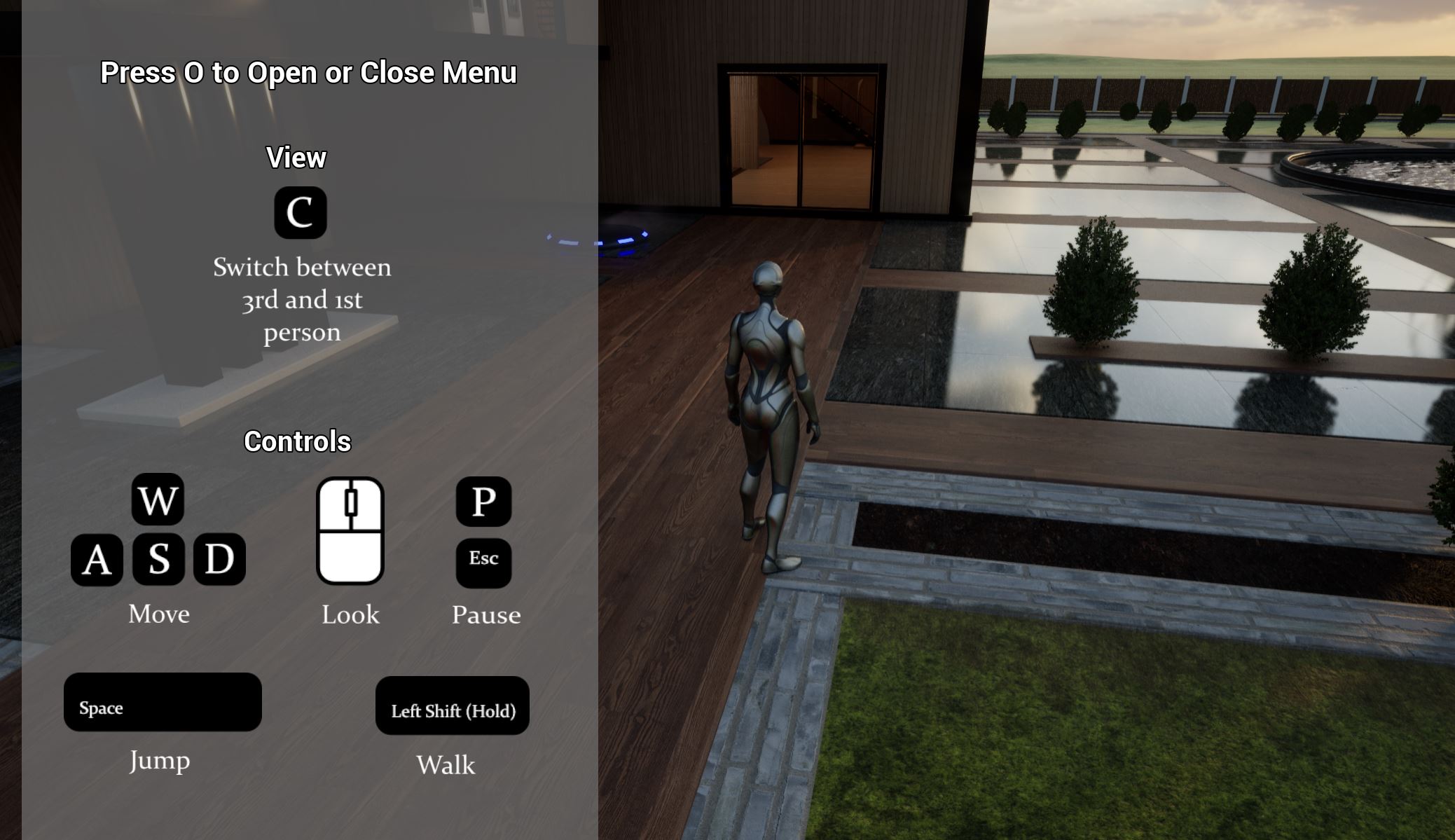
I have made some improvements to the keyboard UI template and made this latest version available for download. It contains a selection of keyboard keys and a mouse icon that can be used for any game, VR or Arch Viz Simulation. This is provided under a creative commons CC BY-SA 4.0 license.

Improvements:

  1. Tidied up and organised the layout of the layers.
  2. Transparent background by default.
  3. Added further keys and numbers.

This keyboard map provides an easy to use and easy to update template for your video game, simulation or interactive environment that requires the use of a keyboard and mouse.

It comes as both Affinity and PSD templates and only requires basic knowledge of either of these programs to update its layout and / or export out transparent PNGs.

To download see the link below:


Below is an example image of how this template can be used in a video game.

The post Keyboard UI Template – Free Download appeared first on Motion Forge Pictures.
Report