Sogou S1 Voice Recorder and Translator – Hard Surface Model

General / 05 September 2024

Sogou S1This is a Sogou S1 voice recorder and translater. This model was a personal project and to practice some hard surface modeling. Overal the model was not to complex aside from the bevels and the shape of the object at the top and around the mics – which were a bit tricky to create.

Further Details:

1. Created in Blender and Texture in Substance 3D Painter.

2. I creasted the screen graphics in Affinity Photo and use some assets from [kinggod](http://)

The model has 3 material slots:

1. Screen.

2. Metal (metal body)

3. Mics (mics and backplate).

For more info on the product please see the link here: https://www.red-dot.org/project/sogou-s1-46279Images rendered using Iray in Substance Painter:


Report

How to Set Up 2.35:1 Ultrawide screen Ratio in Unreal Engine

General / 27 February 2024

How to Set Up 2.35:1 Ultrawide screen Ratio in Unreal Engine Please note some prior knowledge of Unreal Engine is required to understand the post below, but if you've any questions please do post a comment. Select the Cine Camera Actor. Change Filmback to 16:9 DSLR (you can use a different Filmback preset, but

The post How to Set Up 2.35:1 Ultrawide screen Ratio in Unreal Engine appeared first on Motion Forge Pictures.

Report

How to Set up 2.35:1 Ultrawide Screen in Blender

General / 27 February 2024

How to Set up 2.35:1 Ultrawide Screen in Blender Optional: View the camera view through the viewport, so you can see changes taking place. Click on the 'Output' tab. In 'Output' resolution enter for HD: 1920 x 816 or for 4k: 3840 x 1634 (See the post here for further resolutions and ratios) You

The post How to Set up 2.35:1 Ultrawide Screen in Blender appeared first on Motion Forge Pictures.

Report

How to work out Resolution from Ratio

General / 27 February 2024

How to work out Resolution from Ratio To work out the specific resolution according to a set ratio you can use the calculation below. You need to know the height of the image (you can do this via the width, but need to swap around the calculations as done below). For example, if you

The post How to work out Resolution from Ratio appeared first on Motion Forge Pictures.

Report

Not Currently Available for Streaming?

General / 26 January 2024

The Vanishing I don't usually write such posts, but given the significance of the matter, I felt compelled to express my thoughts and add my voice towards the many other videos, posts and articles on this topic. This is the fact that something alarming is occurring in the world of movies — whilst at

The post Not Currently Available for Streaming? appeared first on Motion Forge Pictures.

Report

Tales From The Swindling Serpent

General / 19 January 2024

The Swindling Serpent

A few months ago I was contacted by a Folk band called The Bards, from Maryland US. They reached out to me as they had seen a piece of work I had done called Tavern in the Woods and asked about the creation of album artwork for a new album they were working on (called – Tales from the Swindling Serpent) I was glad to accept the commission and it is the kind of work I really enjoy doing.

Gathering the Key Requirements:

The requirement was to provide a static scene of a medieval port with the focus being on an old tavern called – The Swindling Serpent. This requirement was discussed over several emails and following this I wrote up a key checklist of what was required for the scene.

Key Vision and References:

After the key version for the work was clarified, I also asked for and was provided with some great examples and reference images for the kind of style and layout the band was looking for.

Blocking Out the Scene:

After this I went on to create some simple block outs of the scene. I did this primarily using Blender and some simple shapes for buildings, mountain meshes I had created using Gaea and a few other props.

Below you can see some different options I provided as a starting point for the scene. This part is super important, it allows for all involved to get a solid gauge on what will be worked on and prevents any misunderstandings.

Of course, over time the scene and shot composition can evolve and change, but this baseline is very important. It doesn’t have to be done in 3D, it can also be sketched out using paper and pencil or done via something like photoshop. For myself though I will always create a 3D block out to start with.


Building the Tavern Scene:

The preferred blocked out image was chosen and after this I started work on the scene. Unfortunately I didn’t record a lot images of the scene as I created it! It’s great to be great to see the progression of the work, but I did capture a few a I progress.

To start with I create the landscape and placed the mountains, then I placed the tavern and some of the docks. The mountains came out looking really realistic and I created the meshes in Gaea and used a fairly simply UV projection process in Blender to map photos of a mountain to the meshes.


Initially the scene was going to be at around sun set, but after further work having the scene at night time became a more fitting environment.

The Tavern Sign:

As part of the work the Tavern needed a sign of a snake around a dagger or sword. The initial image was created using AI (which is a whole different topic – as many people will know). But it wasn’t quite getting the result that was required and had some weird artifacts as well. So I isolated some of the elements, created a render of a dagger (using Blender) and then joined them together in photoshop.

The result is below and after not a lot of work, it came out looking just as was required and also a great addition to the artwork scene.

Finalising and Adding Detail:

After several rounds of feedback, and adding many more details, including further buildings, props, some boats, and the most amount of characters I’ve ever added to a scene.

The characters were created and dressed using Character Creator (which I found to be a great program and has often been the saviour when it comes to creating creators from different periods of time).

I finished off the scene with a lighting pass, where I refined the lighting, added a moon, and also added a touch of glow to the tavern to make it more the focus of the scene.

After rendering the final image was further refined using Adobe light room.

The whole scene was crated in Unreal Engine. Using this program I had access to many different models and props, an amazing real time render engine, which made editing the scene and producing renders a seamless and efficient process.#

Final Album Artwork:

To produce this artwork, I worked primarily with John Bachkosky from the Bards, who was a great guy to work with, provided clear and concise requirements and was happy to discuss the best approach to creating the artwork required.


Report

Christmas Jazz – Ambient Background Music

General / 19 December 2023

Christmas Jazz – Ambient Background Music Video A little different from what I usually do or have done in the past – but something a bit more jolly for Christmas. An ambient jazzy background video I created over a few evenings (last year). Relaxing listening if your studying, working or just relaxing! For further

The post Christmas Jazz – Ambient Background Music appeared first on Motion Forge Pictures.

Report

Texture Sizes – Quick Reference Chart

General / 06 December 2023

Texture Sizes for Video Games - Quick Reference Chart The chart below provides an overview of the most common texture sizes that are used in video games. Please note, that for MIP mapping, textures have to be the power of two e.g. 1x1, 2x2, 512x512, 2048x2048 4096x4096 (if not then

The post Texture Sizes – Quick Reference Chart appeared first on Motion Forge Pictures.

Report

Unreal Engine Blueprint – How to Automatically Remove Video when it finishes playing

General / 31 October 2023

Unreal Engine Blueprint – How to Automatically Remove Video when it finishes playing

INITIAL SET UP:

  1. You will need a video, media player and widget. If not done so already, please see the blueprint here for setting up a media player and widget
  2. This overview provides details on how to remove a video from the viewport automatically once its finished playing.
  3. This blueprint plays a video in a widget in the viewport. To play the video in a TV mesh, please also see the blueprint guide linked to above.
  4. This overview assumes you have a basic knowledge of blueprint, but if not consider starting with the intro / first blueprint tutorial on this website.

EVENT GRAPH CODE:

  1. Create a Blueprint and select Actor class.
  2. Add a collision box and resize as required (you can also map to a key and for this please see details at bottom of post).

MAPPING A KEY TO START THE VIDEO PLAY:

  1. You can use an on component begin overlap node with the collision box to trigger video play, but I’ve mapped a key to start the video.
  2. Add the key at the start – E or P for example.
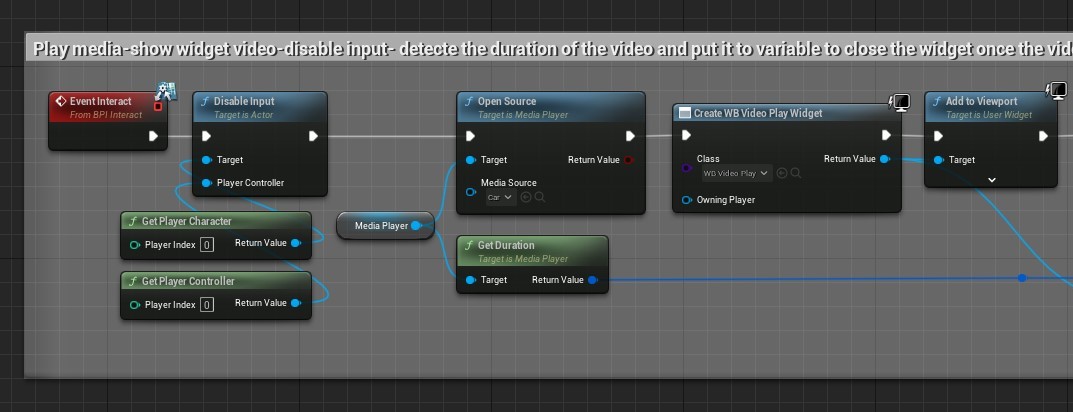
  3. Drag off from the key and add a Disable Input node.
  4. Connect this to Get player character and a Get Player Controller – so the player can’t move when the video plays.
  5. Then add an ‘Open Source’ and select the required video.
  6. Drag off from the Open Source exec pin and add a Create Widget > Select the widget you created for this in the drop-down list.
  7. Next add a ‘Add to Viewport.’

MEDIA PLAYER:

  1. Create a variable and name it media player.
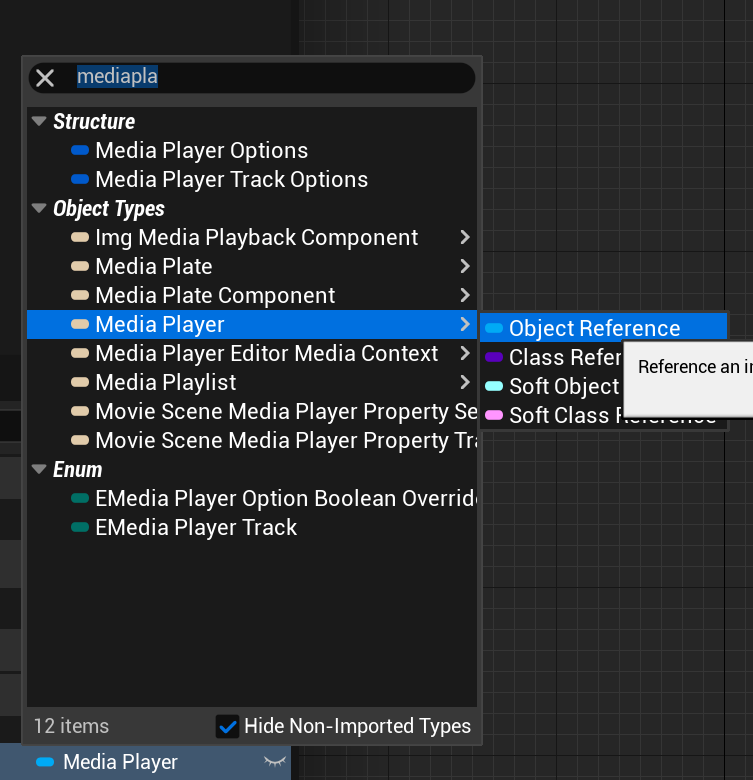
  2. In its type > search for ‘Media Player’ and it should be the object reference type.
  3. Drag in the node and connect to ‘Target’ of Open Source.
  4. Press compile and make sure that the required media player is selected in the media player node details panel (this will appear when  node selected).
  5. Drag off from Media player and add a ‘Get Duration.’

FINISHING OFF:

  1. Add a Delay at about 0.2 – NOTE: The blueprint will not work if this isn’t added as no video will be playing when it goes to Set Duration.
  2. Add another Variable and search for ‘Timespan’ and call it ‘MediaDuration’ 
  3. Drag this new node into the graph and select Set Media Duration
  4. Hover over the Media Duration right-side socket and right click > Select Split Struck Pin
  5. Then Drag off from ‘Seconds’ and connect with another Delay (as shown below).
  6. The rest of the blueprint removes the widget when it’s finished playing and enables the input again.

Please see the finished graph below in full

  1. AS NOTED ABOVE: I’ve used an interface (that I named Interact (The red node below)) to connect the E key directly from the 3rd person character. Hence, I haven’t added an E or P key directly. To add a key directly in the blueprint please see the instructions here.

For further tutorials on blueprints please see the page here: Blueprint Tutorials or to get started with blueprints please see here: Get Started with Blueprint

Related Video Blueprint Tutorials

This overview tutorial is part of a specific set of tutorials that relate to the upload and playing of video in Unreal Engine. Please see below the related posts in this series.

  1. How to upload and play video.

  2. How to Play video in a widget.

  3. How to Automatically Remove Video when it finishes playing.

  4. How to disable every key except one.

The post Unreal Engine Blueprint – How to Automatically Remove Video when it finishes playing appeared first on Motion Forge Pictures.

Report

How to upload and play video in Unreal Engine 5

General / 30 September 2023

How to Upload and Play Video in Unreal Engine 5

In this post it is detailed the simplest way to upload video to Unreal Engine and then play the video in a level.

VIDEO IMPORT AND MEDIA PLAYER:

  1. In the Content Folder create a new folder called Movies
    1. If the video is not in this folder, it won’t get packaged in the game.
  2. Drag in a supported video file into the Movie folder.
  3. This should be in a compressed video format such as an mp4.
    1. See the link here for supported video formats: Supported Video File Formats
  4. Also move the video file into the Windows/PC project Movie folder using the PC folder browser (I.E: Move the video again into the PC folder).
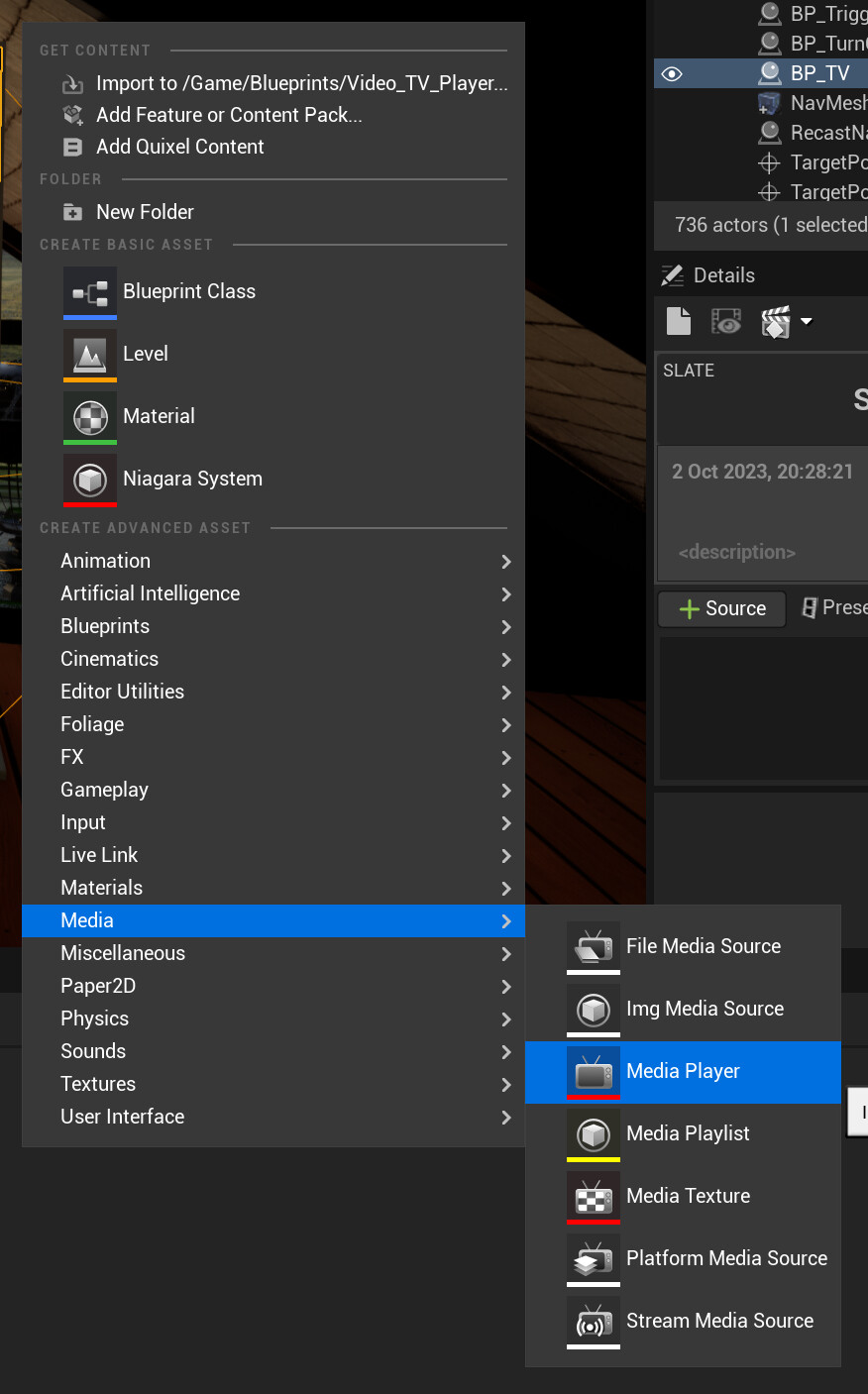
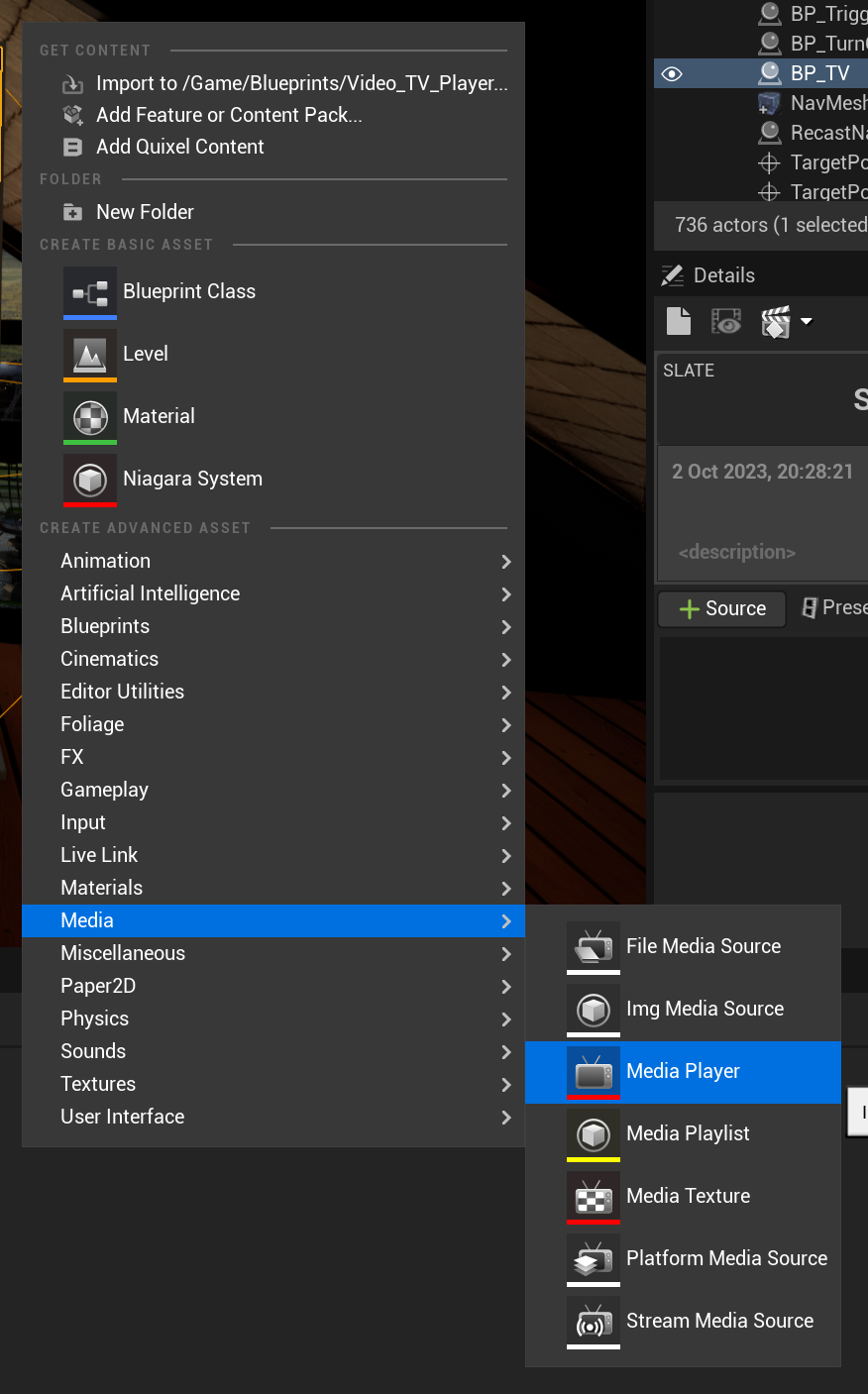
  5. Right click in the new folder and in the menu find (Media > Media Player) and create a Media Player.

  1. A panel will pop up and be sure to tick the box to create a media texture asset.

  1.  Back in the folder > Right click on this newly created media texture and from the pop-up menu create a material.
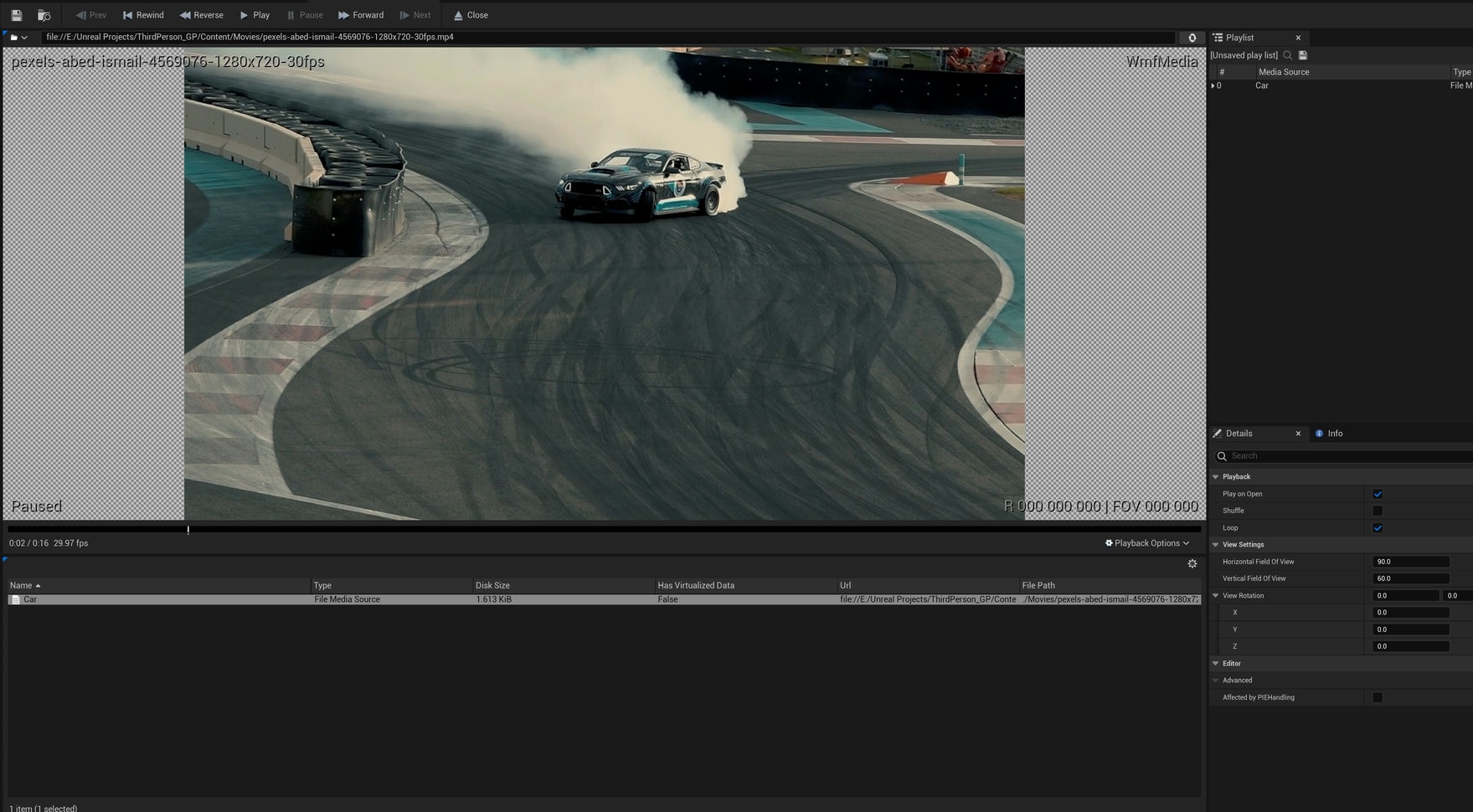
  2. Open the Media player. Double click the video file to make sure it plays. Tick the loop box if you want it to loop.

  1. Close the media player. I have had issues with the video not playing in the editor window if I keep the media player open with the video playing.

BLUEPRINT:

  1. Right click in the Movie folder > Create a Blueprint > Select Blueprint Actor > Name it BP_TV or something similar.
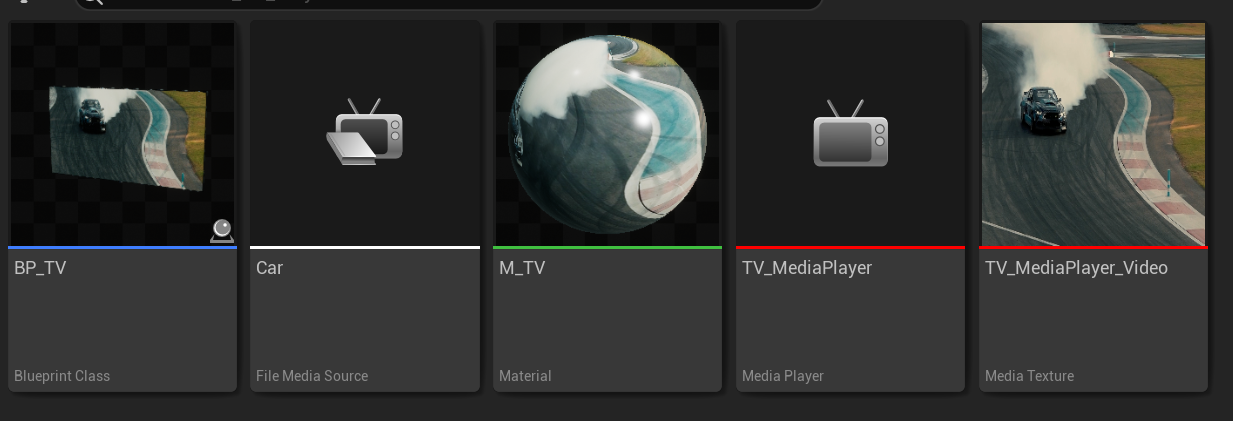
  2. The files now in your folder should show as below: Blueprint, Video, Material, Texture and Media player.

  1. In the Blueprint > Add a ‘static mesh’ and add a plane or TV mesh (a TV mesh will need a separate material slot for the screen for the video material) or just use a plane.
  2. Add the media player material to the mesh screen or plane.
  3. In the graph add the Event begin play node.

  4. Drag off from Event begin play and add an Open Source node. In this node select the video file in the drop-down list provided.
  5. Create a new variable and change it from the default Boolean to a Media player object reference.
  6. Drag this node into the graph and from the options provided select Get NewVar (or whatever you renamed it to – ideally rename to ‘Media Player’).

  7. Plug this into the target of the Open Source node.
  8. Press compile and with the Media player node selected > in the details panel > add the media player that was created.
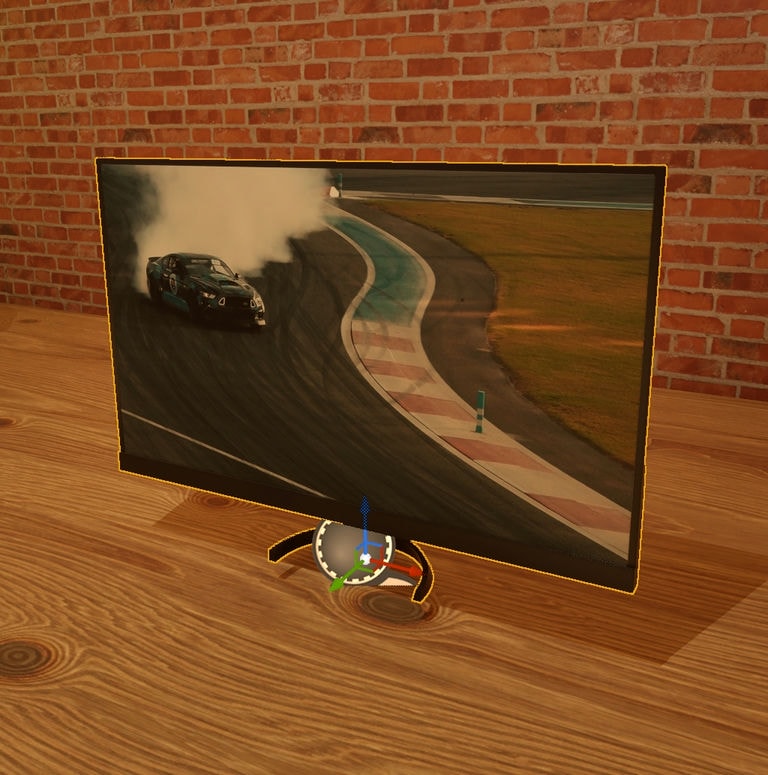
  9. Drag the blueprint into the level and it should work!

ADD SOUND TO THE VIDEO:

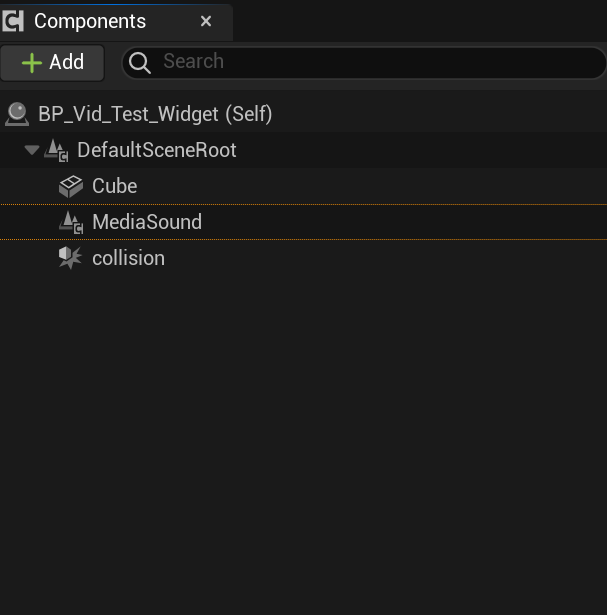
  1. Simple add a Media sound component to the component panel for the video to play sound.
  2. The component panel should like below (assuming you haven’t added other components – which if required is fine of course)

THE FINAL GRAPH:

Related Video Blueprint Tutorials

This overview tutorial is part of a specific set of tutorials that relate to the upload and playing of video in Unreal Engine. Please see below the related videos in this series.

  1. How to upload and play video.

  2. How to Play video in a widget.

  3. How to Automatically Remove Video when it finishes playing.

  4. How to disable every key except one

The post How to upload and play video in Unreal Engine 5 appeared first on Motion Forge Pictures.

Report